Three months ago, my brother-in-law called me in tears.
“Everything’s gone. All of our kids’ baby photos, our wedding photos, my wife’s work files—all encrypted. They want $800 in Bitcoin. I don’t even know what Bitcoin is. Should I pay?”
He’d opened an email attachment that looked like an invoice. Within 10 minutes, ransomware had encrypted 47,000 files on his computer and his external backup drive that was plugged in at the time.
The worst part? He had no separate backup. Those photos were irreplaceable.
We didn’t pay. Studies show that 40% of victims who pay the ransom never get a working decryption key. The criminals just take the money and disappear.
Let me show you exactly what ransomware is, how it works, and—most importantly—how to prevent this nightmare from happening to you.
What Ransomware Actually Does (Step-by-Step)
Think of ransomware like a digital kidnapper holding your files hostage.
The Infection Process:
Stage 1: Entry (How it gets in)
Most common methods:
You open an email attachment (“Invoice.pdf.exe”)
You download fake software from a sketchy website
You click a malicious ad (malvertising)
Hackers exploit a vulnerability in unpatched software
Someone uses stolen credentials to access your remote desktop
Stage 2: Execution (It starts running)
Once activated:
Ransomware runs quietly in background
You might not notice anything wrong immediately
It begins scanning your computer for valuable files
Stage 3: Encryption (Your files get locked)
The ransomware targets specific file types:
Documents (.doc, .docx, .pdf, .txt)
Spreadsheets (.xls, .xlsx)
Photos (.jpg, .png, .raw)
Videos (.mp4, .mov, .avi)
Archives (.zip, .rar)
Databases
Backups
What encryption means:
Files are scrambled using military-grade encryption
They become completely inaccessible
File extensions often change (photo.jpg becomes photo.jpg.locked)
Without the decryption key, files are permanently unreadable
Even the FBI can’t decrypt them without the key
Speed of encryption:
Modern ransomware: 100,000+ files per hour
On SSD drives: even faster
Can encrypt your entire computer in 10-30 minutes
Stage 4: Deletion of Backups (The cruel part)
Sophisticated ransomware:
Deletes Windows shadow copies (system restore points)
Encrypts backup drives if they’re connected
Searches for network drives and encrypts those too
Removes recovery options
Goal: Make sure you have NO way to recover except paying ransom.
Stage 5: Ransom Demand (The reveal)
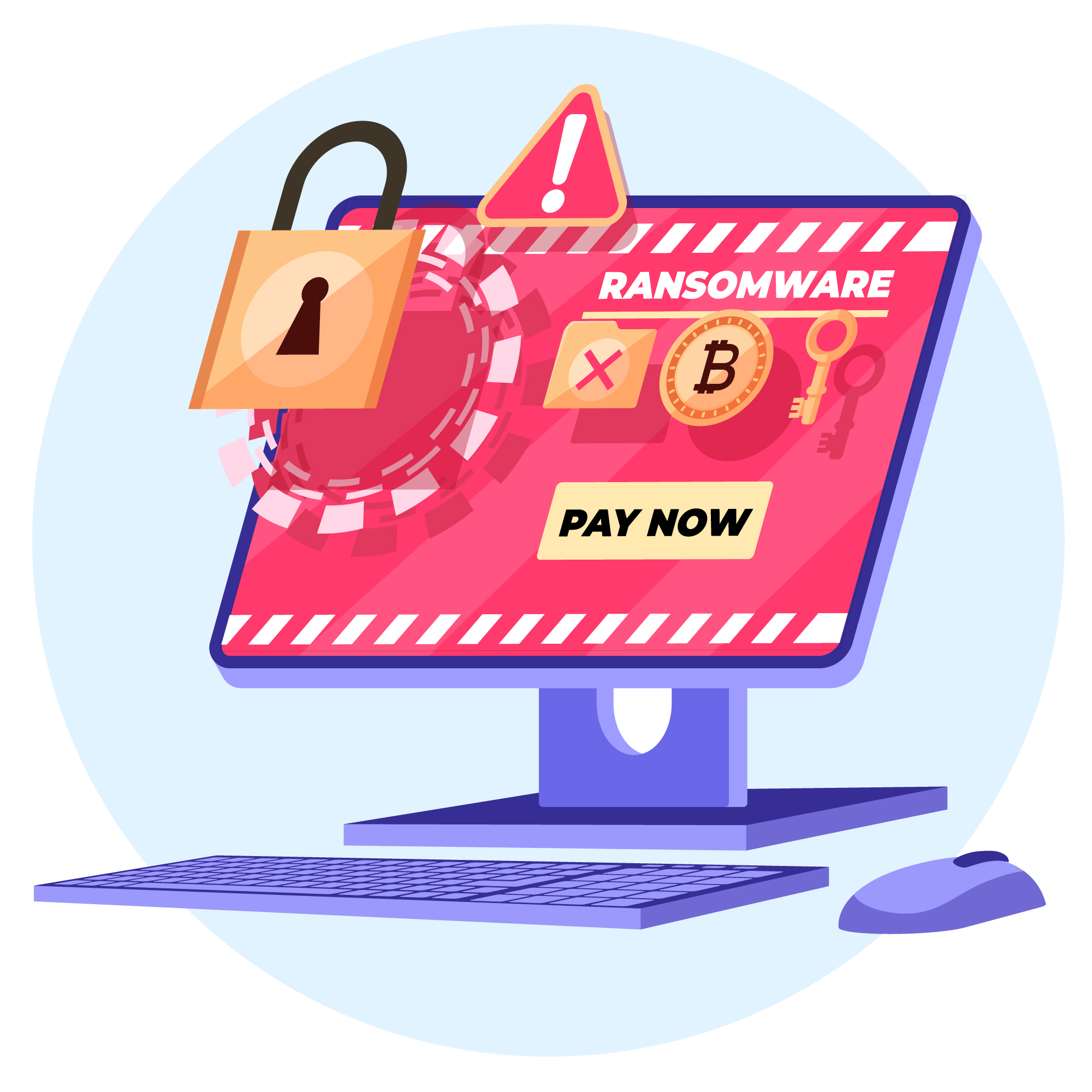
Suddenly, a message appears:
YOUR FILES HAVE BEEN ENCRYPTED
All your documents, photos, videos, and databases have been encrypted with military-grade encryption.
To decrypt your files, you must pay 0.02 Bitcoin ($800) within 72 hours.
After 72 hours, the price doubles. After 7 days, your decryption key will be permanently deleted.
Payment instructions: [Bitcoin wallet address]
Your unique ID: XXXX-XXXX-XXXX
The message includes:
Countdown timer (creates urgency)
Payment instructions (usually Bitcoin)
“Proof” they can decrypt (often decrypt 1-2 files for free)
Threats (price increases, permanent deletion)
Sometimes “customer support” chat
Stage 6: The Waiting Game
You have three options:
Pay the ransom (not recommended)
Try to recover from backups (if you have them)
Accept the loss and reinstall everything
Real Ransomware Examples From 2025-2026
Let me show you actual ransomware attacks that happened recently:
Example 1: LockBit Black (Business Attack)
Target: Small accounting firm in Ohio
How it happened:
Employee opened email: “Tax Document – Urgent Review Required”
Attachment was actually LockBit ransomware
Encrypted entire office network in 20 minutes
Hit 15 computers simultaneously
Files encrypted:
250,000+ client tax returns
10 years of financial records
Employee payroll data
Everything needed to run the business
Ransom demand: $50,000 in Bitcoin
Outcome:
Company refused to pay
Restored from offline backups (had implemented proper backup strategy after learning about ransomware)
Lost only 8 hours of work
Total cost: $3,000 for IT consultant time
Lesson: Offline backups saved them $50,000 and their business.
Example 2: STOP/Djvu (Individual Attack)
Target: College student writing her thesis
How it happened:
Downloaded “free” Photoshop from torrent site
Cracked software contained STOP ransomware
Encrypted her Documents folder
Files encrypted:
Her 80-page thesis (due in 3 days)
Research notes
Class presentations
Personal photos
Ransom demand: $490 in Bitcoin
Outcome:
She paid the ransom out of desperation
Received decryption tool (one of the lucky ones)
Decryption took 6 hours
Lost 2 days of work time and $490
Lesson: Never download cracked software. Her university offered Photoshop for free—she just didn’t know. And she had no backups.
Example 3: Black Basta (Hospital Attack)
Target: Regional hospital in Texas
How it happened:
Hackers exploited unpatched VPN vulnerability
Gained access to network
Deployed ransomware across entire system
Impact:
Patient records encrypted
Medical equipment stopped working
Had to divert ambulances to other hospitals
Postponed non-emergency surgeries
Ransom demand: $2.5 million
Outcome:
Hospital paid partial ransom ($1.2M) after negotiation
Received decryption keys
Recovery took 3 weeks
Several patients had delayed critical care
Lesson: Healthcare is a major ransomware target. Lives can literally be at stake.
Why Ransomware Is So Effective (The Criminal’s Perspective)
Understanding why criminals use ransomware helps you defend against it:
Reason 1: It’s Profitable
Average ransom payment (2025 data):
Individuals: $500-2,000
Small businesses: $10,000-50,000
Large corporations: $100,000-5,000,000
Healthcare/critical infrastructure: $500,000+
Success rate:
40-60% of victims pay (those without backups)
Even with law enforcement advising against it
One successful ransomware campaign can net criminals millions.
Reason 2: Hard to Trace
Bitcoin and cryptocurrency:
Difficult to trace payments
Criminals can launder money through mixers
International jurisdictions make prosecution difficult
Reason 3: Low Risk for Criminals
Most ransomware operators are never caught:
Operate from countries with weak cybercrime laws
Use sophisticated anonymization techniques
Victims often don’t report attacks (embarrassment, fear)
Reason 4: Automation Makes It Scalable
Ransomware-as-a-Service (RaaS):
Developers create ransomware
“Affiliates” distribute it
Profits are split (typically 70/30 or 80/20)
Requires minimal technical skill to deploy
One ransomware strain can infect thousands simultaneously.
Reason 5: Victims Are Desperate
Files being held hostage include:
Irreplaceable family photos
Critical business documents
Years of work
Medical records
Emotional pressure makes people pay even when they know they shouldn’t.
This prevents unauthorized programs from modifying specified folders.
Defense Layer 3: Software Updates
Keep everything updated:
✅ Windows Update (automatic)
✅ Web browsers (Chrome, Edge, Firefox)
✅ Adobe products
✅ Java
✅ All other installed software
Many ransomware attacks exploit known, patched vulnerabilities in unpatched software.
Enable automatic updates wherever possible.
Defense Layer 4: Email Safety
Rules to live by:
❌ Never open attachments from unexpected emails ❌ Never open attachments with double extensions (.pdf.exe) ❌ Never enable macros in documents from unknown sources ❌ Never download files from email links (go to website directly)
✅ Hover over links to see real URL before clicking ✅ Verify sender through different channel if unexpected ✅ When in doubt, delete
Only use admin account when needed for installation
Ransomware has limited impact without admin privileges
Windows:
Settings → Accounts → Family & other users
Add standard user account
Defense Layer 7: Network Security
For home users:
Use strong WiFi password
Keep router firmware updated
Disable UPnP on router (if you don’t need it)
For businesses:
Disable RDP or use VPN
Implement network segmentation
Use strong, unique passwords for all remote access
Enable multi-factor authentication on remote access
Defense Layer 8: Show File Extensions
Windows hides file extensions by default (.exe, .pdf, etc.)
This lets ransomware disguise itself as innocent files:
“Invoice.pdf.exe” appears as “Invoice.pdf”
Show extensions:
Open File Explorer
View tab → Check “File name extensions”
Now you’ll see the real extension and can spot fakes.
What to Do If You’re Hit by Ransomware
Despite precautions, if ransomware infects your system:
Immediate Actions (First 5 Minutes):
1. Disconnect from internet immediately
Unplug ethernet OR turn off WiFi
Prevents ransomware from:
Encrypting network drives
Contacting command server
Spreading to other devices
2. Power off the computer (controversial but sometimes recommended)
If you catch it DURING encryption
Powering off can save some files from being encrypted
But might corrupt files being written at that moment
3. Don’t pay the ransom (yet)
40% of those who pay never get decryption keys
Payment doesn’t guarantee recovery
Explore other options first
4. Take photos of ransom note
With your phone
Shows ransom amount, payment address, contact info
Needed for law enforcement report
Next Steps:
5. Identify the ransomware strain
Upload ransom note to ID Ransomware website
Tells you which ransomware you have
Shows if free decryption tools exist
6. Check for free decryption tools
Visit No More Ransom Project website
Database of free decryption tools
Some older ransomware can be decrypted for free
7. Report to authorities
FBI’s Internet Crime Complaint Center (IC3)
Local police
Required for insurance claims
Helps track ransomware trends
8. Assess your backup situation
Do you have clean backups?
Are backups from before infection?
Can you restore from them?
9. If you have good backups:
Wipe infected computer completely
Reinstall operating system
Restore files from backup
Cost: $0 + time
10. If you have no backups:
Consider data recovery services
Some specialize in ransomware
Success rate varies (might recover some files)
Expensive but cheaper than ransom
Should You Pay the Ransom?
Law enforcement and security experts say: NO.
Reasons not to pay:
❌ 40% never receive decryption key even after paying
❌ Funds criminal organizations
❌ Encourages more ransomware attacks
❌ No guarantee key will work properly
❌ Criminals might demand more money after first payment
Reasons people DO pay (unfortunately):
No backups available
Files are irreplaceable (business-critical, sentimental)
Downtime costs exceed ransom amount
Desperate and see no other option
If you’re considering paying:
Consult with ransomware negotiation specialists
They can verify criminals will actually decrypt
Can negotiate lower ransom amount
Some insurance policies cover ransom (but have strict requirements)
My advice: Only consider paying as absolute last resort after exhausting all other options.
Real Success Stories (How People Prevented Damage)
Story 1: The Photographer with Backups
Situation:
Professional photographer
Opened email attachment
Ransomware started encrypting
Her setup:
Daily cloud backup to Backblaze
Weekly backup to external drive (disconnected)
Caught encryption in progress (behavioral detection alert)
Outcome:
Lost 23 photos from that day (between backups)
Restored everything else from cloud
Total downtime: 3 hours
Cost: $0
Key: Multiple backup layers and disconnected external drive.
Story 2: The Small Business with Updates
Situation:
Email with ransomware sent to 15 employees
3 employees clicked the attachment
Their protection:
All computers on latest Windows update
Quality antivirus with ransomware protection
Behavioral detection enabled
Outcome:
Ransomware detected during execution
Stopped before encrypting files
All 3 computers quarantined malware automatically
No files lost
Cost: $0
Key: Updated software and modern antivirus prevented infection.
Story 3: The IT Manager with Network Segmentation
Situation:
Ransomware infected one employee’s laptop
Their network setup:
User computers isolated from servers
Critical data on separate network segment
Offline backups
Outcome:
Only that one laptop was encrypted
Network drives unaffected
Reimaged laptop from clean backup
Business continued operating normally
Cost: 2 hours IT time
Key: Network segmentation prevented spread.
The Bottom Line: Backups Are Your Lifeline
Here’s what I told my brother-in-law after the devastating attack on his family photos:
Ransomware is not an “if” but a “when.” Every computer user will eventually encounter it—through email, downloads, or compromised websites.
The difference between losing everything and minor inconvenience is simple: backups.
If you remember only one thing from this article:
3-2-1 Backup Rule:
3 copies of data
2 different media types
1 offline or offsite
After losing his family photos, my brother-in-law now:
Backs up to cloud (Google Photos) automatically
Backs up to external drive monthly (disconnects it)
Uses quality antivirus
Never opens unexpected email attachments
It cost him irreplaceable memories to learn this lesson. Don’t let it cost you yours.
Your Action Plan (Do This Today):
Priority 1: Set up backups RIGHT NOW
☐ Sign up for cloud backup service (Google Drive, OneDrive, Backblaze)
☐ Buy external hard drive (1-2TB, $50-80)
☐ Back up important files to both
☐ Disconnect external drive when done
Priority 2: Enable ransomware protection
☐ Windows Security → Ransomware protection → Turn ON
☐ Add important folders to protected list
☐ Verify antivirus has anti-ransomware features
Priority 3: Show file extensions
☐ File Explorer → View → File name extensions (check)
Priority 4: Update everything
☐ Run Windows Update
☐ Update all installed programs
☐ Enable automatic updates
Priority 5: Test your backups
☐ Try restoring a file from cloud backup
☐ Verify external drive backup is accessible
☐ Make sure you know HOW to restore files
Total time: 1-2 hours. Protection: Priceless.
Common Questions About Ransomware
Can ransomware spread through my network to other computers?
Yes. Sophisticated ransomware scans your network and attempts to encrypt any accessible drives and computers. Network segmentation and disconnected backups prevent this.
Will antivirus always stop ransomware?
No. Antivirus catches 95-99% of ransomware, but brand-new variants might slip through temporarily. Backups are your guaranteed defense.
Can ransomware encrypt cloud storage?
If you have cloud storage software running (like OneDrive sync), ransomware can encrypt synced files. But cloud services usually have version history—you can restore previous versions. This is why cloud backup is crucial.
How long does encryption take?
Depends on amount of data and drive speed. Typical SSD: 100,000+ files per hour. You might have 10-30 minutes from infection to complete encryption.
Do Macs get ransomware?
Yes, though less common. Mac ransomware exists and works the same way. Mac users need backups too.
Can I decrypt files without paying?
Sometimes. Check No More Ransom Project for free decryption tools. Some older ransomware strains have been cracked. But modern ransomware uses unbreakable encryption.
Will factory reset remove ransomware?
Yes, factory reset removes ransomware. But your encrypted files remain encrypted—you need backups to recover them.
Is ransomware illegal?
Yes, extremely illegal in all countries. But criminals operate from jurisdictions that don’t extradite, making prosecution difficult.
Remember: Ransomware is devastating, but completely preventable with proper backups. Don’t learn this lesson the hard way like my brother-in-law did. Set up your backup strategy today—before you need it.