What Is Phishing? How to Spot Fake Emails in 2026

πŸ“Š Quick Answer (If You’re in a Hurry)

Phishing = Fake emails/messages designed to trick you into revealing passwords, credit card numbers, or other sensitive information.

How it works:

  1. Criminal sends email pretending to be your bank, Amazon, IRS, etc.
  2. Email says there’s a problem with your account (urgent!)
  3. You click a link that takes you to a fake website
  4. You enter your password/info on the fake site
  5. Criminal now has your real login credentials

Warning signs:

  • Urgent language (“Act now or account will be closed!”)
  • Generic greetings (“Dear Customer” instead of your name)
  • Suspicious sender email addresses
  • Links that don’t match the claimed company
  • Requests for sensitive information

Protection: Never click links in unexpected emails. Go directly to the website by typing the URL yourself.

Jump to Real Examples


Two months ago, my dad called me in a panic.

“I just got an email from Amazon saying my account was hacked. I clicked the link and changed my password like they said. But now I can’t log into the real Amazon. What happened?”

He’d fallen for a phishing scam.

The email looked exactly like it came from Amazonβ€”same logo, same formatting, even a fake order number. But it was a trap. By “changing his password” on the fake site, he’d handed his real Amazon password directly to criminals.

Within an hour, they’d:

  • Ordered $800 worth of electronics using his saved credit card
  • Changed his email address to lock him out
  • Tried to access his email (same passwordβ€”common mistake)

My dad isn’t stupid. He’s a retired engineer. But phishing emails have become so sophisticated that even tech-savvy people fall for them.

Let me show you exactly what phishing is, how to spot it, and what to do if you fall for it.
hacker fishing credit card character

What Phishing Actually Is (In Plain English)

Think of phishing like this:

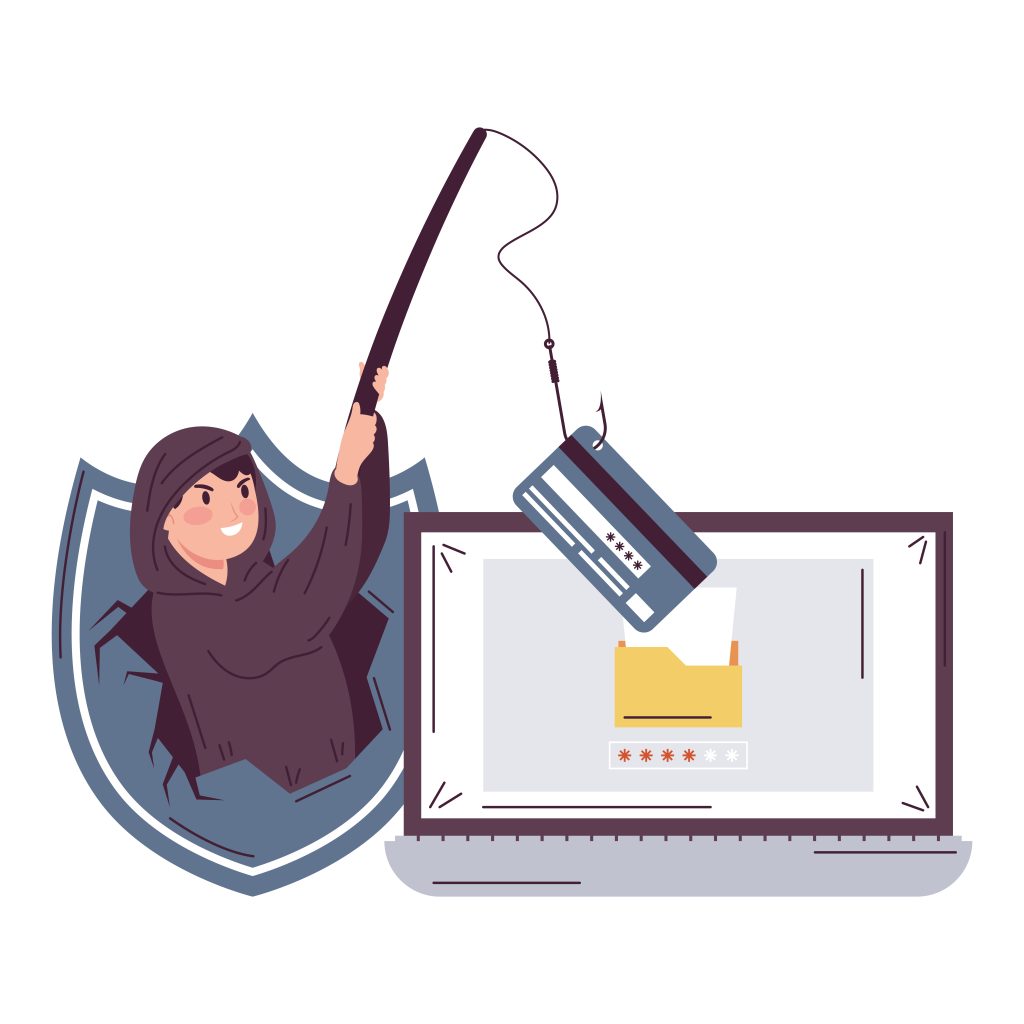
Real fishing: You put bait on a hook, throw it in water, wait for fish to bite.

Phishing: Criminals put bait in an email (fake urgent message), send it to thousands of people, wait for victims to “bite” (click and enter their info).

The goal is always the same: Trick you into voluntarily handing over:

  • Passwords
  • Credit card numbers
  • Social Security numbers
  • Bank account info
  • Personal information

Why it’s called “phishing”: The “ph” instead of “f” comes from old-school hacker culture. In the 1990s, hackers who hacked phone systems were called “phreaks” (phone + freaks). The spelling stuck for internet scams.

How Phishing Actually Works (Step-by-Step)

Here’s a typical phishing attack:

Step 1: Criminal creates fake email

  • Copies logos, formatting from real company (Amazon, PayPal, your bank)
  • Creates urgent scenario (“Suspicious activity!” or “Account suspended!”)
  • Includes a link to a fake website

Step 2: Criminal sends email to thousands of people

  • Buys email lists from the dark web
  • Or hacks a company’s email database
  • Sends to everyone, knowing most people use Amazon/PayPal/banks

Step 3: You receive the email

  • It looks legitimate
  • The problem seems urgent
  • You panic and click without thinking

Step 4: Fake website looks exactly like the real one

  • Same logo, same colors, same layout
  • URL looks similar (amazon-security.com instead of amazon.com)
  • Login page looks identical to the real thing

Step 5: You enter your credentials

  • You type your real username and password
  • Maybe your credit card info
  • Maybe answer “security questions”

Step 6: Criminal now has everything

  • Your credentials are sent directly to them
  • The fake site might redirect you to the real site (so you don’t notice anything wrong)
  • They immediately log into your real account

Step 7: Damage is done

  • They make purchases, drain bank accounts, steal identity
  • Often happens within minutes
  • By the time you realize, it’s too late

The scary part: You voluntarily gave them everything. No hacking required.
Types of Phishing Attacks

Phishing isn’t just emails anymore. Here are the main types:

1. Email Phishing (Classic)

What it is: Fake emails pretending to be from companies you know.

Common impersonations:

  • Banks (Chase, Bank of America, Wells Fargo)
  • Payment services (PayPal, Venmo, Cash App)
  • Shopping sites (Amazon, eBay, Walmart)
  • Tech companies (Microsoft, Apple, Google)
  • Delivery services (FedEx, UPS, USPS)
  • Government agencies (IRS, Social Security)

Example subject lines:

  • “Suspicious Activity Detected on Your Account”
  • “Your Package Cannot Be Delivered”
  • “Verify Your Identity or Account Will Be Closed”
  • “You Have a Tax Refund Waiting”
  • “Unusual Sign-In Attempt Blocked”

2. Spear Phishing (Targeted)

What it is: Personalized phishing aimed at a specific person, using information about them.

How it’s different: Instead of “Dear Customer,” the email uses your real name, mentions your job, references recent activities.

Example:

“Hi Sarah,

I noticed you recently purchased a MacBook from our store. We need to verify the shipping address before we can process your order #847392. Please click here to confirm.

  • Apple Store Team”

This is scarier because it feels personal and credible.

3. Smishing (SMS/Text Phishing)

What it is: Phishing via text message instead of email.

Common examples:

  • “Your package is waiting. Track here: [link]”
  • “Bank of America: Suspicious charge of $847.32 detected. Reply YES to approve or NO to decline.”
  • “Your Netflix payment failed. Update payment info: [link]”

Why it works: People trust text messages more than emails. We’re used to getting legitimate shipping notifications and bank alerts via text.

4. Vishing (Voice Phishing)

What it is: Phishing via phone call.

How it works: Someone calls claiming to be from tech support, your bank, the IRS, etc. They convince you to give info over the phone or install remote access software.

Example:

“This is Microsoft Technical Support. Your computer has been infected with a virus and is sending out your personal information. We need to remote into your computer immediately to fix this.”

5. Whaling (Targeting Executives)

What it is: Phishing aimed at high-value targets like CEOs, CFOs, executives.

Example:

Email to CFO that looks like it’s from the CEO: “I’m in a meeting with our lawyers finalizing the acquisition. Need you to wire $50,000 to this account for closing costs. Urgent, can’t talk now, just do it.”

This has cost companies millions.

6. Clone Phishing

What it is: Criminal intercepts a real email you’ve received, creates an identical copy with malicious links, and resends it.

Example: You get a real email from Dropbox with a file link. Days later, you get what looks like the same email, but the link now goes to a phishing site. You think “Oh, I already got this” and click without scrutinizing.

Real Phishing Examples From 2026

Let me show you actual phishing attempts I’ve received recently:

Example 1: Fake Amazon Security Alert

Subject: “Unusual Activity Detected – Verify Your Account”

Email body:

Dear Valued Customer,

We detected unusual activity on your Amazon account from an IP address in Russia. For your security, we have temporarily suspended your account.

To restore access, please verify your identity by clicking the link below:

[VERIFY MY ACCOUNT NOW]

If you do not verify within 24 hours, your account will be permanently closed and you will lose access to your order history and Prime membership.

Thank you, Amazon Security Team

Why it looks real:

  • βœ“ Uses Amazon logo and colors
  • βœ“ Professional language
  • βœ“ Mentions specific threat (Russia IP)
  • βœ“ Creates urgency (24 hours)

Red flags:

  • βœ— Generic greeting (“Dear Valued Customer”)
  • βœ— Sender email: amazon-security@am4zon.com (notice the “4” instead of “a”)
  • βœ— Link goes to amazon-verify.secure-login.net (not amazon.com)
  • βœ— Amazon never suspends accounts this way
  • βœ— Threatening tone

What would happen if you clicked: The link takes you to a site that looks exactly like Amazon’s login page. You enter your email and password. The site says “Verifying…” then redirects you to the real Amazon (so you think it worked). Meanwhile, criminals now have your login.

Example 2: Fake PayPal Payment Notice

Subject: “You’ve received $487.50”

Email body:

Payment Received

John Smith sent you $487.50

Message: “Refund for item not received”

[VIEW PAYMENT DETAILS]

This payment will be held until you confirm receipt. Click above to release funds to your account.

Why it looks real:

  • βœ“ Uses PayPal branding perfectly
  • βœ“ Specific amount ($487.50 sounds real)
  • βœ“ Plausible message
  • βœ“ You get excited about receiving money

Red flags:

  • βœ— You weren’t expecting a payment
  • βœ— Sender email: service@paypa1.com (notice the “1” instead of “l”)
  • βœ— PayPal doesn’t “hold” incoming payments this way
  • βœ— Link goes to paypal-secure.payment-verify.com

What would happen if you clicked: You’d log in thinking you’re claiming money. Instead, you’ve given criminals your PayPal credentials. They immediately send themselves money from your account.

Example 3: Fake IRS Tax Refund

Subject: “You Are Eligible for a Tax Refund – $1,247.00”

Email body:

Internal Revenue Service

After reviewing your 2025 tax return, we have determined that you are eligible for a tax refund of $1,247.00.

To receive your refund via direct deposit, please verify your banking information:

[CLAIM MY REFUND]

Note: Failure to claim within 30 days will result in refund being forfeited.

Internal Revenue Service

Why it looks real:

  • βœ“ Uses official IRS seal
  • βœ“ Specific refund amount
  • βœ“ Formal government language
  • βœ“ Everyone wants a tax refund

Red flags:

  • βœ— The IRS NEVER contacts taxpayers by email
  • βœ— Sender: irs-refunds@tax-service.gov (not irs.gov)
  • βœ— Generic greeting (IRS would use your name)
  • βœ— Urgency and threat (30 days or forfeit)

What would happen if you clicked: You’d enter your Social Security number, bank account info, and other personal data. Identity theft would follow.

Example 4: Fake Microsoft Password Expiration

Subject: “Your password will expire today”

Email body:

Your Microsoft password will expire today.

To prevent losing access to your account, confirm your current password and set a new one:

[CHANGE PASSWORD NOW]

If you do not update your password, you will be locked out of Outlook, OneDrive, and all Microsoft services.

Microsoft Account Team

Why it looks real:

  • βœ“ Microsoft branding
  • βœ“ Plausible scenario (passwords do expire)
  • βœ“ Creates fear of losing access

Red flags:

  • βœ— Microsoft sends password expiration notices through the product itself, not random emails
  • βœ— Link goes to microsoft-account-security.com (not microsoft.com)
  • βœ— Threatening tone

What would happen if you clicked: You’d enter your current password (which the criminals now have), then your “new” password (which they also have). They’ve gained access to your entire Microsoft account.
The 10 Warning Signs of Phishing Emails

Learn to spot these and you’ll catch 95% of phishing attempts:

1. Suspicious Sender Email Address

Look closely at the email address, not just the display name.

βœ— Display name says “Amazon” but email is amazon-security@amaz0n.com
βœ— paypal@secure-payment-center.com
βœ— noreply@bankofamerica-alert.net
βœ— apple@icloud-support.com

βœ“ amazon.com (legitimate)
βœ“ paypal.com (legitimate)
βœ“ bankofamerica.com (legitimate)

Pro tip: Hover your mouse over the sender name (don’t click) to see the actual email address.

2. Generic Greetings

Legitimate companies use your name in emails.

βœ— “Dear Customer”
βœ— “Dear Valued Member”
βœ— “Hello User”
βœ— “Dear Sir/Madam”

βœ“ “Hi Sarah,” (using your actual name)

Exception: Newsletters and marketing emails sometimes use generic greetings. But emails about account security should be personalized.

3. Spelling and Grammar Errors

Professional companies proofread their emails.

βœ— “You’re account has been compromised”
βœ— “Please to verify you’re identity”
βœ— “We has detected suspicious activity”

Note: Some phishing emails in 2026 are perfectly written (AI helps scammers now). But obvious errors are still a red flag.

4. Urgent or Threatening Language

Phishing emails create panic so you act without thinking.

βœ— “Act now or account will be closed!”
βœ— “You have 24 hours to respond”
βœ— “Failure to comply will result in legal action”
βœ— “Unusual activity detected – respond immediately”

Real companies give you time and don’t threaten.

5. Requests for Sensitive Information

No legitimate company will email you asking for:

  • Password
  • Social Security number
  • Credit card number (full number)
  • PIN or security code
  • Mother’s maiden name

If an email asks for this, it’s phishing. Period.

6. Suspicious Links

Before clicking any link, hover your mouse over it (don’t clickβ€”just hover). Look at the URL that appears.

βœ— Link says “amazon.com” but URL is amazon-security.verify-account.com
βœ— URL has weird characters or numbers: amaz0n.com or arnaz0n.com
βœ— URL shorteners: bit.ly/xH7kL (hides the real destination)

βœ“ Goes directly to company’s real domain: amazon.com, paypal.com, etc.

7. Unexpected Attachments

Never open attachments you weren’t expecting, even from people you know (their account might be hacked).

Dangerous file types:

  • .exe (programs)
  • .zip (compressed files that could contain malware)
  • .doc or .docx (can contain malicious macros)
  • .pdf (can exploit vulnerabilities)

If you weren’t expecting an attachment, don’t open it. Contact the sender through a different method to verify.

8. Too Good to Be True Offers

βœ— “You’ve won a $1,000 Amazon gift card!”
βœ— “Claim your tax refund of $5,000!”
βœ— “You’re eligible for a government grant!”
βœ— “Congratulations! You’ve been selected for a special offer!”

If you didn’t enter a contest, you didn’t win anything.

9. Mismatched URLs

The link text says one thing, but when you hover, it goes somewhere else.

Example:

  • Link text: “Click here to go to PayPal.com”
  • Actual URL when you hover: paypal-verify.scam-site.com

Always hover before clicking.

10. Unusual Requests

βœ— Your “boss” emails asking you to buy gift cards
βœ— A “friend” emails asking you to click a link and vote for them
βœ— Your “bank” asks you to verify your account by clicking a link
βœ— A company asks you to send money via wire transfer, Bitcoin, or gift cards

When in doubt, contact the person/company directly using a phone number or website you looked up yourself (not from the email).

What Antivirus Software Can and Can’t Do About Phishing

Here’s the honest truth about antivirus and phishing protection:

What Antivirus CAN Do:

βœ… Block known phishing websites

  • Quality antivirus software blocks 90-95% of known phishing sites
  • Databases are updated constantly with new threats

βœ… Warn you about suspicious links

  • Browser extensions flag risky links before you click
  • Pop-up warnings when you’re about to enter credentials on a sketchy site

βœ… Scan email attachments

  • Detects malware hidden in attachments
  • Blocks dangerous file types

βœ… Detect fake websites

  • Analyzes website certificates
  • Identifies imposter sites mimicking real companies

What Antivirus CAN’T Do:

❌ Stop brand-new phishing sites

  • If a site was created yesterday, it might not be in the database yet
  • Zero-day phishing sites slip through

❌ Read your mind

  • If you ignore warnings and click anyway, there’s only so much software can do

❌ Protect you from giving information over the phone

  • Voice phishing (vishing) isn’t detectable by antivirus

❌ Stop you from falling for sophisticated social engineering

  • If a phishing email is well-crafted and personalized, you might fall for it even with protection

Bottom line: Good antivirus with web protection is essential, but your brain is the most important defense.

What to Do If You Clicked a Phishing Link

Don’t panic. Act fast. Here’s your recovery plan:

If You ONLY Clicked the Link (Didn’t Enter Info):

You’re probably fine. Just clicking a link usually doesn’t do damage by itself.

What to do:

  1. Close the browser tab immediately
  2. Run a full antivirus scan (phishing sites sometimes download malware automatically)
  3. Clear your browser cache and cookies
  4. If you don’t have antivirus, install quality security software immediately and run a scan

If You Entered Your Password:

Time-sensitive. Act NOW.

Immediate steps (within minutes):

  1. Change your password immediately on the REAL website
    • Go directly to the real site (type the URL yourself)
    • Don’t click any links
  2. If you use the same password elsewhere: Change it on ALL sites immediately
    • This is why unique passwords matter
    • Use a password manager to generate and store unique passwords
  3. Enable two-factor authentication (2FA) if available
    • Makes your account much harder to hijack
    • Even if they have your password, they can’t get in without your phone

Within 24 hours: 4. Check account activity

  • Look for unauthorized purchases, changed settings, suspicious logins
  • Amazon, PayPal, banks all show recent activity
  1. Contact the company’s fraud department
    • Report the phishing attempt
    • Ask them to flag your account for monitoring
  2. Run full antivirus scan
    • Phishing sites sometimes install malware too

If You Entered Credit Card or Bank Info:

VERY time-sensitive. Act IMMEDIATELY.

Right now (within minutes):

  1. Call your bank/credit card company
    • Report the fraud
    • They’ll freeze the card and issue a new one
    • Monitor for unauthorized charges
  2. Change online banking passwords
    • From a different, secure device if possible
  3. Enable account alerts
    • Get notified of every transaction via text

Within 24 hours: 4. File a fraud report

  • FTC: IdentityTheft.gov
  • Local police (sometimes required for insurance claims)
  1. Check your credit report
    • AnnualCreditReport.com (free)
    • Look for new accounts you didn’t open
  2. Consider credit freeze
    • Prevents new accounts from being opened in your name
    • Contact Equifax, Experian, TransUnion

If You Entered Social Security Number or Personal Info:

CRITICAL. This is identity theft territory.

Immediate actions:

  1. File identity theft report
    • IdentityTheft.gov (Federal Trade Commission)
    • Get a recovery plan
  2. Place fraud alert on credit reports
    • Contact one of the three credit bureaus
    • They’ll notify the others
    • Makes it harder for criminals to open accounts in your name
  3. Monitor credit reports closely
    • Check all three bureaus: Equifax, Experian, TransUnion
    • Look for new accounts, inquiries, addresses
  4. Consider credit freeze
    • More drastic than fraud alert
    • Completely locks your credit
    • You must unfreeze when you legitimately need credit
  5. Change ALL passwords
    • Email (most critical)
    • Banking
    • Shopping sites
    • Social media
  6. Consider identity theft protection service
    • Monitors dark web for your information
    • Provides recovery assistance
    • Some services include insurance

Ongoing:

  • Monitor financial accounts weekly for 6-12 months
  • Watch for tax refund fraud (criminals filing fake tax returns in your name)
  • Be alert for phishing attempts using your stolen info

How to Verify If an Email Is Legitimate

When you receive a suspicious email, here’s how to check if it’s real:

Method 1: Go Direct (Safest)

Never click links in the email.

Instead:

  1. Open a new browser tab
  2. Type the company’s website directly: amazon.com, paypal.com, etc.
  3. Log in normally
  4. Check if there are any alerts or messages in your actual account

If the issue mentioned in the email is real, you’ll see it in your account.

Method 2: Contact the Company Directly

  1. Look up the company’s customer service number yourself (Google it or check your credit card statement)
  2. Call them
  3. Ask: “I received an email saying [X]. Is this legitimate?”

Never call a number provided in the suspicious email.

Method 3: Check the Email Headers

For tech-savvy users:

  1. View full email headers (varies by email client)
  2. Look at the “Return-Path” and “Received” fields
  3. Verify they match the claimed sender’s domain

If you’re not technical, skip this method. Just go direct instead.

Method 4: Hover, Don’t Click

  1. Hover your mouse over any links (don’t click)
  2. Look at the URL that appears at the bottom of your screen
  3. Does it match the company’s real domain?

If the URL looks weird, don’t click.

Real-World Examples: What Happened When People Fell For It

Let me share some real stories (names changed for privacy):

Story 1: The $12,000 Amazon Scam

What happened: Jennifer received an email saying her Amazon account showed suspicious orders totaling $12,000. She panicked and clicked “Dispute These Charges.” She entered her Amazon password, credit card info, and even her Social Security number (the site claimed it needed to “verify her identity”).

The damage:

  • Criminals immediately ordered $3,000 in gift cards on her real Amazon account
  • Opened three credit cards in her name
  • Filed fraudulent tax return to steal her refund
  • Sold her identity info on the dark web

Recovery time: 18 months of dealing with credit bureaus, police reports, and fraudulent accounts.

What she wishes she’d done: Gone directly to Amazon.com to check her account instead of clicking the email link.

Story 2: The PayPal “Payment Received” Trick

What happened: Marcus got excited when he saw an email saying he’d received $487 on PayPal. He clicked to “claim the payment” and logged in. The site looked exactly like PayPal. He entered his credentials.

The damage:

  • Criminals immediately sent themselves $2,400 from his PayPal account
  • Changed his password and email address
  • Locked him out of his account

Recovery time: 3 weeks to regain account access and dispute the fraudulent transfer. PayPal did refund him eventually, but it was stressful.

What he wishes he’d done: Opened PayPal directly in a new tab to check for the payment instead of clicking the email link.

Story 3: The Microsoft “Tech Support” Call

What happened: Linda received an email saying her Windows license was expiring. She called the number provided. The “Microsoft tech support” person convinced her to install remote access software so they could “fix the issue.”

The damage:

  • While remotely connected, they installed spyware
  • Stole passwords for email, banking, social media
  • Convinced her to buy $500 in “security software” (didn’t exist)
  • Monitored her computer for 2 months before she discovered it

Recovery time: Had to wipe computer completely and start over. Changed all passwords. 6 months of monitoring accounts.

What she wishes she’d done: Realized Microsoft NEVER cold-calls customers or sends emails asking people to call them.

These stories aren’t meant to scare you. They’re meant to show you the cost of clicking without thinking.

How to Protect Yourself: The Complete Checklist

Level 1: Basic Protection (Everyone Should Do This)

βœ… Install antivirus with web protection

  • Quality antivirus software blocks 90-95% of phishing sites
  • Essential first line of defense

βœ… Never click links in unexpected emails

  • Go directly to the website by typing the URL yourself
  • Or call the company using a number you look up independently

βœ… Verify before you trust

  • If something seems urgent or too good to be true, it probably is
  • Take 30 seconds to verify through a different channel

βœ… Use different passwords for different sites

  • So if one gets compromised, the others are safe
  • Use a password manager to remember them

βœ… Look at sender email addresses carefully

  • Not just the display name
  • Hover to see the real email address

Level 2: Intermediate Protection (Recommended)

βœ… Enable two-factor authentication (2FA)

  • Email accounts (most critical)
  • Banking
  • PayPal and shopping sites
  • Social media

βœ… Use a password manager

  • Generates strong, unique passwords
  • Auto-fills only on legitimate sites (won’t fill on phishing sites)
  • Many antivirus suites include one

βœ… Check URLs before entering credentials

  • Make sure you’re on the real site
  • Look for https:// and padlock icon
  • Read the domain name carefully

βœ… Be skeptical of attachments

  • Don’t open unexpected attachments
  • Verify with sender through different channel first

βœ… Update your software

  • Operating system
  • Browser
  • Antivirus
  • All programs
  • Enable automatic updates

Level 3: Advanced Protection (For High-Risk Individuals)

βœ… Use separate email addresses

  • One for banking/important accounts
  • One for shopping
  • One for newsletters/signups
  • Makes targeted phishing harder

βœ… Enable identity theft monitoring

  • Alerts you when your info appears on dark web
  • Many comprehensive security suites include this
  • Consider standalone services for additional protection

βœ… Use hardware security keys

  • Physical 2FA device (YubiKey, etc.)
  • Nearly impossible to phish
  • For very sensitive accounts

βœ… Regular security audits

  • Review account permissions
  • Check for unauthorized devices
  • Monitor login history

βœ… Educate family members

  • Especially elderly relatives (common targets)
  • Show them examples of phishing emails
  • Make a plan for what to do if they’re unsure

Teaching Kids and Elderly Parents About Phishing

For Kids (Ages 8-17):

Simple rules:

  1. “Never click links in emails unless Mom or Dad says it’s okay”
  2. “If something says you won a prize but you didn’t enter a contest, it’s fake”
  3. “Never give out passwords, even if someone says they’re from tech support”
  4. “If an email seems weird, show us before clicking anything”

Use parental controls:

  • Quality family security software includes web filtering and monitoring
  • Protects kids from phishing sites and other threats

For Elderly Parents:

They’re common targets because:

  • Less familiar with technology
  • More trusting
  • Often have savings criminals want to steal
  • Less likely to recognize modern scams

How to help:

  1. Set up strong antivirus with web protection on their computer
  2. Create a rule: “Before clicking anything in an email, call me first”
  3. Show them real examples of phishing emails
  4. Set up their online accounts with 2FA and strong passwords
  5. Monitor their accounts with their permission (or as power of attorney)
  6. Make a plan: What to do if they think they clicked something bad

Helpful phrase for them: “Real companies don’t threaten to close your account by email. If it’s urgent, they’ll send a letter or you can call them yourself.”

The Bottom Line: Trust Your Gut

Here’s what I told my dad after he fell for the Amazon phishing scam:

Phishing works because it creates panic. When you’re scared or excited, you don’t think clearly. That’s exactly what criminals count on.

The solution is simple: Slow down.

When you get an email that makes you feel:

  • Panicked (“My account is suspended!”)
  • Excited (“I won $1,000!”)
  • Worried (“Suspicious activity detected!”)
  • Pressured (“Act now or else!”)

STOP. Take a breath. Do not click.

Instead:

  1. Close the email
  2. Open a new browser tab
  3. Go directly to the website by typing the URL yourself
  4. Log in normally
  5. Check if the issue is real

This 30-second delay will save you from 99% of phishing attempts.

And if you’re ever unsure, ask someone. Call a tech-savvy family member. Contact the company directly. Post in a tech forum. Don’t let embarrassment stop you from asking.

My dad isn’t embarrassed anymore that he fell for a phishing scam. He’s actually grateful it happened with “only” $800 in fraudulent chargesβ€”he learned his lesson before something worse happened.

Now he’s the one teaching his friends to spot phishing emails.


Your Action Plan Right Now

Step 1: Protect your devices

  • If you don’t have antivirus with web protection, get quality security software
  • Make sure it’s actively running
  • Update it to the latest version

Step 2: Enable 2FA on critical accounts

  • Email (start hereβ€”if they hack your email, they can reset all other passwords)
  • Banking
  • PayPal
  • Amazon
  • Social media

Step 3: Audit your passwords

  • Are you using the same password everywhere? Change that.
  • Use a password manager to create unique passwords
  • Many antivirus suites include password managers

Step 4: Practice skepticism

  • Create a mental rule: “I never click links in emails about account problems”
  • Always go directly to the website
  • Verify before trusting

Step 5: Educate your family

  • Share this article with parents, kids, spouse
  • Make a plan for what to do if someone clicks a phishing link
  • Create a culture of “ask first, click later”

Common Questions About Phishing

How do criminals get my email address?

Data breaches, buying lists on the dark web, scraping websites, hacked company databases, or you gave it to a sketchy website that sold it.

Can I get hacked just by opening a phishing email?

Usually no. Just opening it is generally safe. The danger is clicking links or downloading attachments. (Exception: very old email clients had vulnerabilities, but modern email is safer.)

Why do phishing emails have obvious spelling errors?

Sometimes it’s because scammers aren’t native English speakers. But sometimes it’s deliberateβ€”they want to filter for only the most gullible victims who won’t notice errors.

If I didn’t enter my password, am I safe?

Probably. Just clicking a link might download malware, so run an antivirus scan to be sure. But you haven’t given them your credentials yet.

Can antivirus stop all phishing?

No antivirus catches 100%. They block 90-95% of known phishing sites, but brand-new sites might slip through. Your awareness is the final defense.

What should I do with phishing emails?

Delete them. Or, if you’re feeling helpful, report them:

  • Gmail: Click the three dots β†’ “Report phishing”
  • Outlook: Click the three dots β†’ “Report” β†’ “Phishing”
  • Forward to the FTC: spam@uce.gov

Are phishing attempts getting more sophisticated?

Yes. AI helps scammers create perfect grammar, personalized messages, and convincing fake websites. In 2026, even tech-savvy people can fall for well-crafted phishing.

Why doesn’t my email filter catch these?

Email filters catch millions of phishing emails, but some get through. Criminals constantly adapt to bypass filters. You’re the last line of defense.

Leave a Reply

Your email address will not be published. Required fields are marked *