Physical Address
304 North Cardinal St.
Dorchester Center, MA 02124
Physical Address
304 North Cardinal St.
Dorchester Center, MA 02124
Two-Factor Authentication (2FA) = Using two different types of proof to log into your accounts instead of just a password.
How it works:
Example: You log into Gmail. You enter your password (factor 1), then enter a 6-digit code from your phone (factor 2). Even if someone steals your password, they can’t get in without your phone.
Why you need it:
Bottom line: If your email, bank, or any important account offers 2FA, turn it on. Today. Right now. Stop reading and do it.
Three months ago, my uncle lost access to his email account.
He got a notification: “New device signed into your Gmail account from Russia.”
By the time he saw it, the hacker had:
The worst part? The hacker got in with a password that had been leaked in a data breach from a website my uncle used in 2019. He’d used the same password on Gmail.
Could this have been prevented?
Yes. Easily. With two-factor authentication.
Even if the hacker had his password, they couldn’t have gotten into Gmail without the second factor (his phone). The bank transfer never would have happened. The $4,200 would still be in his account.
Let me show you exactly what 2FA is, why it’s so effective, and how to set it up (takes 5 minutes).
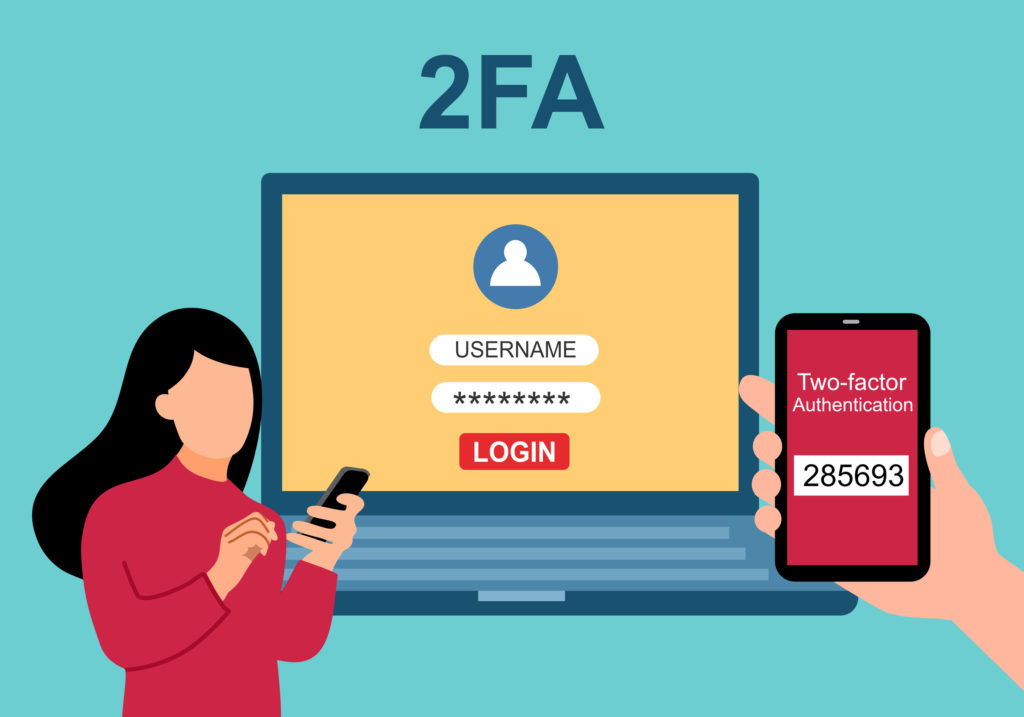
Think of 2FA like having two locks on your front door instead of one.
Just a password (one factor):
Password + 2FA (two factors):
The key insight: Passwords can be stolen, guessed, or leaked. But the attacker can’t steal something you physically have (your phone, security key, etc.) unless they break into your house.
Security experts classify authentication into three categories:
Weakness: Can be guessed, phished, or leaked in data breaches.
Strength: Attacker would need to physically steal this from you.
Strength: Unique to you, can’t be stolen (though can sometimes be faked).
Two-Factor Authentication = Using TWO of these categories together.
Most common: Password (factor 1) + phone code (factor 2).
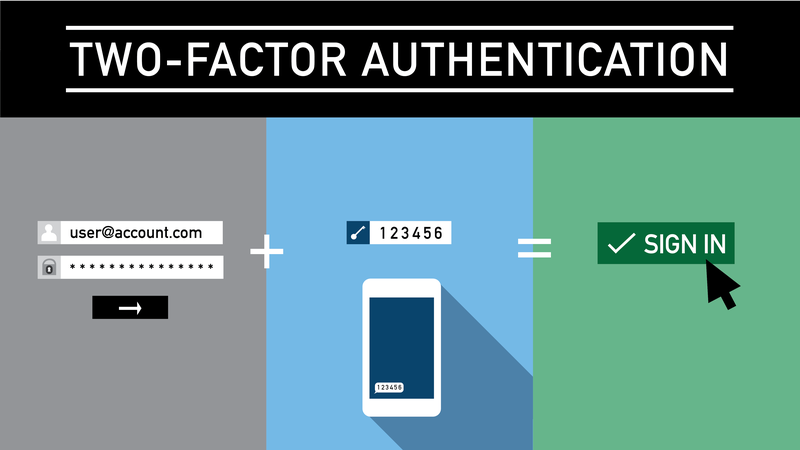
Let’s walk through what happens when you log into an account with 2FA enabled:
Step 1: You go to Gmail.com
Step 2: Password is correct, but not enough
Step 3: Check your phone
Step 4: Enter the code
Step 5: You’re in
What if someone else tries with your stolen password?
That’s it. That’s the magic.
Let’s look at real data from major companies:
Google analyzed millions of account takeover attempts:
Accounts WITHOUT 2FA:
Accounts WITH SMS 2FA:
Accounts WITH authenticator app 2FA:
Accounts WITH security key 2FA:
Microsoft reported that 99.9% of automated account compromises are blocked by any form of 2FA.
Translation: If everyone used 2FA, account hacking would basically disappear.
1. Mass attacks fail
2. Phishing becomes much harder
3. Data breaches become less dangerous
Not all 2FA methods are equally secure. Here’s the breakdown:
How it works: You get a text message with a 6-digit code.
Pros:
Cons:
Verdict: Better than nothing, but not the best option.
Use this if: It’s your only option, or the account isn’t super critical.
How it works: Code is sent to your email address.
Pros:
Cons:
Verdict: Weak. Only marginally better than no 2FA.
Use this if: Literally no other option is available.
How it works: App on your phone generates time-based codes that change every 30 seconds.
Popular apps:
Pros:
Cons:
Verdict: Best balance of security and convenience for most people.
Use this for: Email, banking, social media, shopping accounts.
How it works: You get a notification on your phone asking “Is this you trying to log in?” Tap Yes or No.
Examples:
Pros:
Cons:
Verdict: Good, but be careful not to approve requests you didn’t initiate.
Use this for: Work accounts, Microsoft/Apple accounts.
How it works: Physical device (looks like a USB stick) that you plug into your computer or tap to your phone.
Popular keys:
Pros:
Cons:
Verdict: Best security, but overkill for most people. Great for high-value accounts (email, banking, crypto).
Use this for: Email (most critical), financial accounts, cryptocurrency wallets.
How it works: Your phone uses your fingerprint or face as the second factor.
Examples:
Pros:
Cons:
Verdict: Good when combined with other methods, but not a standalone solution.
Use this for: Device unlock + another 2FA method for online accounts.
Here’s my honest recommendation based on different account types:
Best option: Authenticator app + hardware security key as backup
Why: Email is the master key to all your other accounts (password reset emails go here). Protect it with the best you’ve got.
Minimum: Authenticator app
Best option: Authenticator app or hardware security key
Why: Money is at stake. Don’t use SMS (SIM swapping is a real threat).
Minimum: Authenticator app
Best option: Authenticator app
Why: Accounts get hacked and used to scam your friends. Worth protecting well.
Acceptable: SMS (if that’s all they offer)
Best option: Authenticator app
Why: Saved credit cards and order history are valuable.
Acceptable: SMS
Best option: Whatever IT department requires (usually authenticator or hardware key)
Why: Company data is at stake. Follow company policy.
Acceptable: SMS or whatever’s easiest
Why: If compromised, consequences are minimal.
Let me walk you through setting up the most common type: authenticator app.
Choose one:
I recommend: Google Authenticator for simplicity, or Microsoft Authenticator for features.
Download from App Store (iPhone) or Google Play (Android).
I’ll use Gmail as the example (process is similar for most services):
Go to your account settings:
Google will ask you to verify it’s you:
First, Google makes you add a phone number:
This creates an SMS backup. Not ideal, but required by Google.
Now add the authenticator app:
You’ll see a QR code on your screen
On your phone:
You’ll see a 6-digit code that changes every 30 seconds
Back on your computer:
This is CRITICAL – don’t skip:
Without backup codes, losing your phone = losing access to your account.
Log out and log back in:
If this works, you’re set up correctly!
Go back to 2FA settings:
What happens: You lose your phone. Can’t generate 2FA codes. Locked out of account.
Solution: Save backup codes in password manager or print them.
What happens: Phone dies. No way to get codes.
Solution: Set up authenticator app on multiple devices (phone + tablet), or use Authy which syncs across devices.
What happens: SMS codes go to old number you no longer have. Locked out.
Solution: Update phone number in account settings BEFORE changing carriers.
What happens: Wipe phone, lose all authenticator accounts.
Solution:
What happens: Hacker tries to log in with your stolen password. Sends you push notification. You’re tired, tap “Approve” without thinking. They’re in.
Solution: Only approve login attempts YOU initiated. Check location/device info before approving.
What happens: Hacker uses social engineering to convince carrier to transfer your number to their SIM. They receive your SMS codes.
Solution: Use authenticator app or hardware key for important accounts, not SMS.
Scenario: You lost your phone and don’t have backup codes.
Many services let you set up multiple 2FA methods:
Try the backup method to regain access.
If you have no backup codes and no backup method:
This can take days to weeks. Don’t rely on this. Save your backup codes.
For critical accounts (bank, email):
This is why backup codes exist – to avoid this hassle.
Short answer: Yes, it’s fine. Convenient and reasonably secure.
Long answer: Depends on your threat model.
Pros:
Cons:
Mitigation:
For maximum security:
This is overkill for most people but makes sense for:
What happened: Hackers breached a gaming website and stole 50 million passwords in 2024.
John’s situation:
Without 2FA: They’d have gotten into his email, used password reset on bank, stolen money.
With 2FA: Gmail asked for code from his phone. Hackers didn’t have his phone. Attack stopped.
Result: John got an alert about suspicious login attempt. Changed his password. No damage done.
What happened: Sarah received a convincing fake email claiming to be from her bank.
Sarah’s mistake:
Without 2FA: They’d log in immediately and drain her account.
With 2FA: They tried to log in. Real bank asked for 2FA code. Code went to Sarah’s phone. She saw login attempt from Russia. Realized she’d been phished. Called bank immediately. Changed password. Account safe.
Result: Phishing attack failed because of 2FA.
What happened: Hackers called Mike’s cell carrier pretending to be him.
The attack:
Mike’s accounts:
Lost: $47,000
If Mike had used authenticator app instead of SMS: Hackers wouldn’t have received any codes. Attack would have failed.
Lesson: SMS 2FA is better than nothing, but vulnerable to SIM swapping. Use authenticator apps for important accounts.
2FA is extremely effective, but not perfect. Here’s how sophisticated attackers try to bypass it:
How it works:
Defense:
How it works:
Defense:
How it works:
Defense:
How it works:
Defense:
How it works:
Defense:
Here’s what I told my uncle after he lost $4,200:
2FA isn’t perfect, but it would have stopped 99% of attacks, including yours.
The attack that worked on you (leaked password from old website) is the most common type of account compromise, and 2FA completely blocks it.
The truth:
The math is obvious.
“But what if I lose my phone?”
Save your backup codes. Problem solved.
“But it’s annoying to enter codes.”
Losing $4,200 is more annoying. Identity theft recovery is more annoying. Having your email hacked and used to scam your friends is more annoying.
“But I don’t have anything valuable in my accounts.”
Your email is the master key to everything. Password reset emails for your bank go there. Someone with email access can hijack your entire digital life.
Stop making excuses. Turn on 2FA. Today.
Priority 1: Email (Do This First – It’s the Most Important)
Priority 2: Banking and Financial (Do This Second)
Priority 3: Social Media and Shopping
Priority 4: Everything Else
Total time investment: 30-60 minutes to secure your entire digital life.
Worth it? Absolutely.
Do I need 2FA if I have a strong password?
Yes. Strong passwords get leaked in data breaches all the time. You don’t control whether websites you use get hacked. 2FA protects you even when passwords leak.
Can I use the same 2FA app for work and personal accounts?
Yes, but some companies require you to use their specific app (Microsoft Authenticator, Duo, etc.). Check company policy.
What happens if I get a new phone?
You need to transfer your authenticator app. Methods:
Is 2FA required by law?
Not for individuals, but some industries (banking, healthcare) require it for employee accounts. It’s not legally required for your personal accounts, but highly recommended.
Can I turn off 2FA after enabling it?
Yes, you can disable it in account settings. But why would you? It’s protection against account takeover.
What if I’m traveling internationally and don’t have cell service?
Authenticator apps work offline (they generate codes locally). SMS 2FA requires cell service. This is another reason to use authenticator apps instead of SMS.
Will 2FA protect me from malware?
No. If malware is on your computer stealing your info, 2FA helps but doesn’t completely protect you. You still need antivirus.
How do blind or visually impaired people use 2FA?
Authenticator apps support screen readers. Hardware security keys work well for accessibility. SMS codes can be read aloud by screen readers.
→ What Is Phishing? How to Spot Fake Emails in 2026
→ What Is Malware? A Simple Guide for Non-Tech People
→ Best Antivirus Software for Families (Complete Guide)
Remember: 2FA is the single most effective thing you can do to protect your online accounts. It’s not optional anymore—it’s essential. If a service offers 2FA and you haven’t enabled it, you’re leaving the door unlocked. Turn it on today.