Extending Your Computer’s Lifespan: Hardware Care and Maintenance Tips

Your computer is a significant investment, and with proper care, it can serve you reliably for many years. While software optimization is important, the physical hardware also requires attention to maintain peak performance and prevent premature failure. This guide covers essential hardware maintenance practices that will help extend your computer’s lifespan and keep it running smoothly.
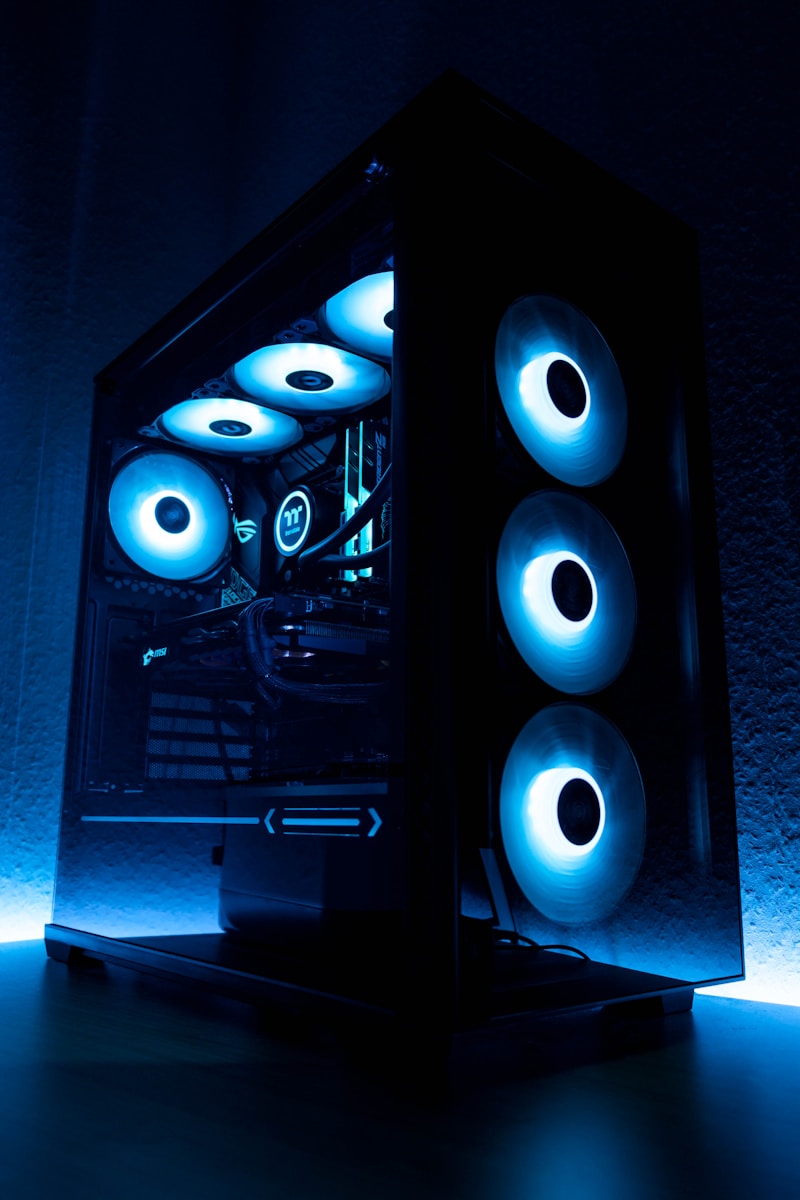
Photo by Lazar Andy on Unsplash

Understanding Hardware Degradation

All computer components have a limited lifespan, but proper care can significantly extend their usable life:

Common Causes of Hardware Failure

Heat Damage: Excessive heat is the primary enemy of computer components. Overheating can damage processors, graphics cards, and other sensitive electronics.

Dust Accumulation: Dust clogs cooling systems, traps heat, and can cause electrical shorts in extreme cases.

Power Fluctuations: Sudden power surges or unstable power supply can damage sensitive components.

Physical Damage: Drops, bumps, and improper handling can damage internal components, especially in laptops.

Moisture and Humidity: Excessive humidity can cause corrosion and electrical problems.

Cooling System Maintenance

Regular Dust Cleaning

Dust is the most common cause of overheating. Clean your computer regularly:

For Desktop Computers:

  1. Shut down and unplug your computer
  2. Open the case and use compressed air to blow out dust
  3. Pay special attention to CPU cooler, GPU fans, and case fans
  4. Clean air filters if your case has them
  5. Reassemble and ensure all fans spin freely

For Laptops:

  1. Shut down and unplug the laptop
  2. Use compressed air to blow into ventilation slots
  3. Work from inside out to push dust away from components
  4. Consider professional cleaning for heavily used laptops

Monitor Temperatures

Use software like HWMonitor or Core Temp to track your component temperatures:

  • CPU: Should typically stay below 80°C under load
  • GPU: Most cards are safe up to 85°C
  • Hard drives: Optimal range is 25-45°C

If temperatures are consistently high, investigate cooling improvements.

Improve Airflow

For desktop computers, consider these airflow improvements:

  • Ensure front fans pull air in and rear fans push air out
  • Keep cable management tidy to avoid blocking airflow
  • Position the computer with adequate space around vents
  • Consider additional case fans if temperatures are borderline

Power Protection

Use a Surge Protector

Power surges from lightning strikes or grid fluctuations can instantly destroy computer components. Always connect your computer to a quality surge protector.

Consider a UPS

An Uninterruptible Power Supply (UPS) provides additional benefits:

  • Battery backup during power outages
  • Power conditioning for stable voltage
  • Protection against power surges
  • Time to safely shut down during extended outages

Proper Shutdown Practices

Avoid forcing shutdowns by holding the power button unless absolutely necessary. Proper shutdowns allow the system to complete write operations and park hard drive heads safely.
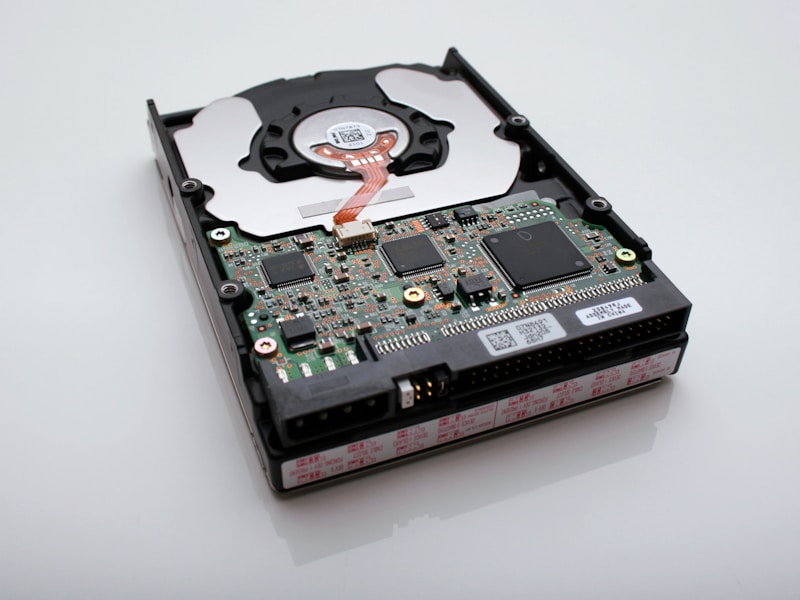
Storage Device Care

Photo by Denny Muller on Unsplash

Hard Drive Maintenance

For traditional hard drives:

  • Avoid moving the computer while powered on
  • Keep the drive less than 80% full
  • Run regular error checks using built-in tools
  • Listen for unusual clicking or grinding sounds (signs of failure)

SSD Best Practices

For solid-state drives:

  • Enable TRIM support for optimal performance
  • Avoid defragmenting SSDs (unnecessary and reduces lifespan)
  • Keep some free space for wear leveling
  • Update firmware when manufacturer releases updates

Battery Care (Laptops)

Maximize Battery Lifespan

Laptop batteries degrade over time, but proper care extends their useful life:

  • Avoid keeping the laptop plugged in 100% of the time
  • Aim to keep battery between 20% and 80% when possible
  • Store laptops at around 50% charge for long periods
  • Avoid exposing to extreme temperatures

Calibrate Periodically

Every few months, fully discharge the battery (to about 5%) and then charge to 100% to calibrate the battery meter.

Physical Care

Screen Cleaning

Clean screens properly to avoid damage:

  • Use microfiber cloths only
  • Use distilled water or screen-safe cleaning solution
  • Never spray liquid directly on the screen
  • Clean gently without applying pressure

Keyboard Maintenance

Keep keyboards clean and functional:

  • Turn the keyboard upside down and shake out debris
  • Use compressed air between keys
  • Clean keycaps with appropriate cleaning solution
  • Avoid eating over the keyboard

Environmental Considerations

Choose appropriate locations for your computer:

  • Avoid direct sunlight
  • Keep away from heating vents and radiators
  • Maintain moderate humidity levels
  • Ensure adequate ventilation space

Maintenance Schedule

Monthly:

  • Visual inspection for dust buildup
  • Check temperatures under load
  • Listen for unusual sounds

Quarterly:

  • Deep clean dust from internal components
  • Clean screens and keyboards
  • Review backup status

Annually:

  • Consider reapplying thermal paste on CPU/GPU
  • Replace case fans if showing wear
  • Professional cleaning for laptops

Conclusion

Photo by Chris Ried on Unsplash

Proper hardware maintenance is an investment that pays dividends in reliability and longevity. By keeping your computer clean, cool, and protected from power issues, you can significantly extend its useful life and avoid costly repairs or premature replacement. Start with the basics like dust cleaning and surge protection, then build a comprehensive maintenance routine that keeps your computer running at its best for years to come.

Leave a Reply

Your email address will not be published. Required fields are marked *