Physical Address
304 North Cardinal St.
Dorchester Center, MA 02124
Physical Address
304 North Cardinal St.
Dorchester Center, MA 02124
You’ve got antivirus installed. You run scans. It comes back clean every time.
And yet — something is off.
Your computer is slower than it used to be. Your browser behaves strangely. Your fans run hot when you’re not doing much. Strange things happen at odd times. You can’t quite put your finger on it, but something doesn’t feel right about how your machine is performing.
Here’s something most people don’t know: antivirus software misses things. Not rarely — regularly. Independent testing by security labs consistently shows that even the best antivirus products don’t catch 100% of threats. Some malware is specifically engineered to evade detection. Some hides inside legitimate processes. Some disables security software before it can be scanned. Some simply hasn’t been catalogued yet.
A clean antivirus report is reassuring. It is not a guarantee.
This article covers the real-world warning signs that malware is present on your computer — including the subtle, easy-to-dismiss ones that most people chalk up to aging hardware or Windows being Windows. We’ll also explain what to do when your antivirus isn’t catching what your instincts are telling you is there.
No technical background needed. Just clear, honest information.
Before getting into the symptoms, it’s worth understanding why a clean scan result isn’t the end of the conversation.
Antivirus software primarily works in two ways: matching files against a database of known threats (signature detection) and watching for suspicious behavior (behavioral analysis). Both methods have real limitations.
Signature detection can only catch threats that have already been identified and added to the database. Brand-new malware — what security researchers call zero-day threats — doesn’t yet have a signature. It can sit undetected for days, weeks, or longer while analysts catch up.
Behavioral detection is smarter but imperfect. Some malware is specifically coded to behave like legitimate software during analysis environments — pausing all malicious activity when it detects it’s being scanned, then resuming once the scan is complete. This technique, called sandbox evasion, is documented across multiple advanced malware families.
Rootkits represent an even more direct challenge. As we covered in our article on Trojans and viruses, rootkits embed themselves at a deep system level — sometimes in the kernel itself — and can actively hide their presence from security software running on the same machine. A rootkit can intercept the antivirus’s own scan requests and return false “clean” results.
Fileless malware operates entirely in your computer’s memory rather than writing files to your hard drive. Since most antivirus scanning is file-based, malware that leaves no files presents a fundamentally different detection challenge.
The bottom line: your antivirus is a critical layer of protection, not a complete one. The symptoms below are your second layer of detection — the human layer. And in some cases, your instincts will catch what the software missed.
Computers slow down for plenty of legitimate reasons. Software updates run in the background. Storage fills up. Aging hardware struggles with modern software demands. These are real and common.
But there’s a particular quality to malware-related slowdowns that distinguishes them from normal performance degradation — and once you know what to look for, the difference becomes recognizable.
What normal slowdowns look like: Gradual, consistent degradation over months or years. Slowness correlated with storage being nearly full. Performance dipping during obvious resource-heavy tasks.
What malware-related slowdowns look like: Sudden onset — the computer was fine last week and isn’t this week. Slowness that persists even when you’re not running anything demanding. Sluggishness at startup and during tasks that used to be fast. The computer feels like it’s working hard even when it should be idle.
The reason is straightforward: many types of malware consume your system’s processing power as a side effect of their actual work. Cryptomining malware deliberately maxes out your CPU. Spyware that’s monitoring and transmitting your activity uses processing cycles continuously. Botnet malware running spam or attack operations in the background taxes your resources constantly.
How to investigate: Open Task Manager on Windows (Ctrl + Shift + Esc) and look at the CPU and Memory columns. Sort by CPU usage and watch what’s at the top. On a healthy, idle computer, no single process should be consuming large amounts of CPU continuously. If something you don’t recognize is consistently consuming 20%, 30%, 50% or more of your CPU for no apparent reason, that warrants investigation.
Right-click any unfamiliar process and search its name online. Malware frequently uses names designed to look like legitimate Windows processes — close but not quite right. svch0st.exe is not the same as svchost.exe. lsas.exe is not the same as lsass.exe. These subtle misspellings are a documented malware tactic.
Your browser is one of the most targeted surfaces on your computer. It handles your logins, your financial transactions, your private communications, and your searches. For malware designed to steal information or generate revenue, the browser is the prize.
Browser-hijacking malware is extremely common, and it announces itself through changes you didn’t make.
Specific signs your browser has been compromised:
Some of these symptoms come from potentially unwanted programs (PUPs) — technically not malware in the most serious sense, but software that installed itself without your meaningful consent and modifies your browser for someone else’s benefit, usually to generate ad revenue or redirect your searches.
Others are more serious. Banking Trojans specifically target browsers to intercept financial information during online banking sessions. Some browser malware injects fake content into real websites — displaying fraudulent messages, fake login overlays, or modified account information — while the legitimate website is actually loading normally in the background.
How to investigate: Go to your browser’s extensions or add-ons settings and audit everything installed. Remove anything you don’t recognize or didn’t deliberately install. Then check your browser settings — homepage, startup page, default search engine — and restore them to your preferences. If they reset back to unwanted values after being changed, something is actively resetting them, which is a clear sign of an active infection.
This one is alarming when it happens, and it should be.
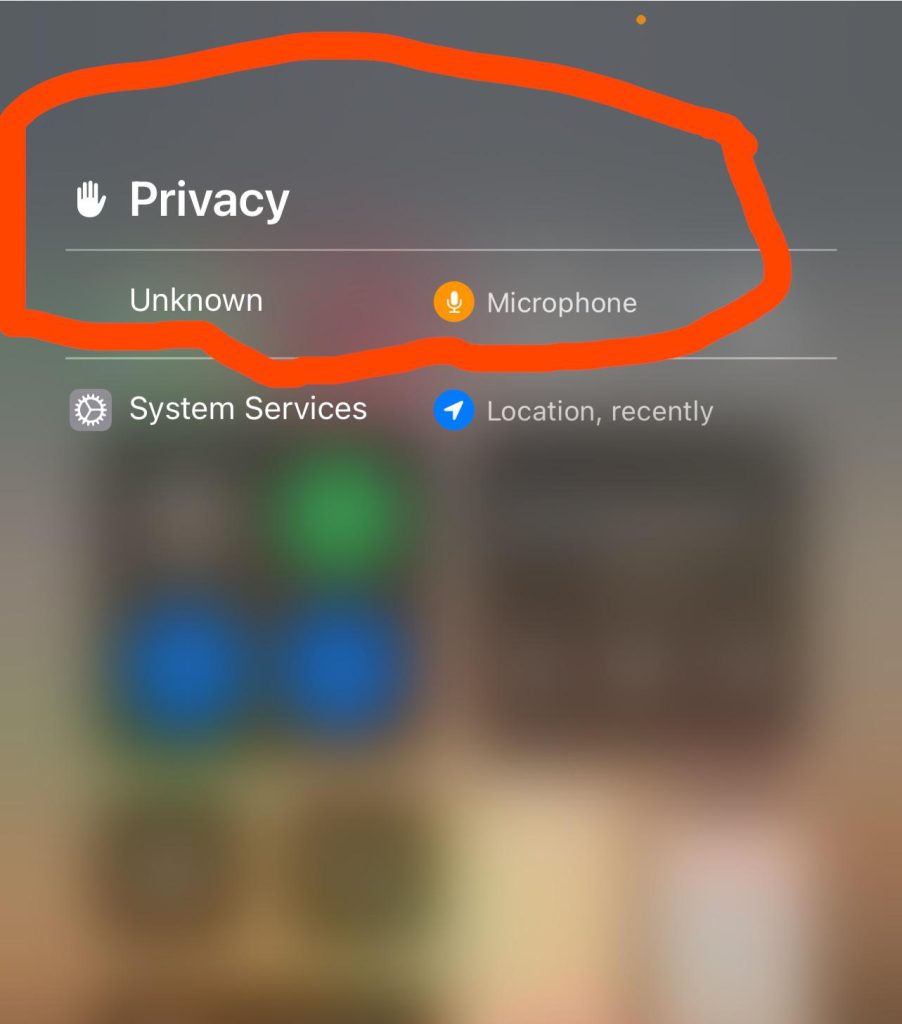
The small LED indicator light next to your webcam is hardware-level — it’s physically wired to activate when the camera is in use. On most modern laptops, this light cannot be disabled by software. When it turns on, the camera is genuinely active.
If your webcam light turns on when you haven’t opened any application that uses the camera, something else is activating it. The same logic applies to microphones, though they’re harder to monitor visually — some security software includes microphone access alerts for exactly this reason.
Remote Access Trojans (RATs), as described in our Trojans article, can activate webcams and microphones for surveillance purposes. This category of malware has been found on victims’ computers after targeted attacks and, in documented criminal cases, has been used for sustained covert surveillance over extended periods.
This isn’t just a theoretical threat. Law enforcement cases have documented individuals who had RATs installed without their knowledge, with the attacker monitoring them via webcam for weeks or months. It happens to regular people, not just high-profile targets.
How to investigate: Open Task Manager and check which applications are running. Cross-reference with which applications legitimately use your camera — video calling apps, streaming software, and so on. If none of your camera-using applications are open and the light activates, run an antivirus scan immediately and consider using a second-opinion scanner.
Practical interim measure: Physical webcam covers — small sliding covers that attach over the lens — cost a few dollars and provide absolute physical certainty that the camera can’t be used even if the software is compromised. This isn’t paranoia; it’s the same measure used by security professionals who understand the threat landscape. For microphone concerns, some security suites include indicators showing which applications have microphone access.
Your computer should only do what you tell it to do. When programs open without you launching them, files appear or disappear without explanation, settings change without your input, or your cursor moves on its own — something else has control.
This is one of the most unambiguous signs of active malware, particularly Remote Access Trojans or other forms of remote access malware.
Specific things to watch for:
The cursor movement scenario is particularly clear-cut. If your mouse pointer moves on its own, you are watching someone else control your computer. This is an active intrusion requiring immediate response — disconnect from the internet immediately, as described in our ransomware response guide, and treat this as a security emergency.
How to investigate: Open Task Manager and review the Startup tab — this shows every program configured to run at startup. Disable anything unfamiliar. Then check your installed programs list for applications you don’t recognize. Pay particular attention to anything installed recently — sort by installation date and look at what appeared around when you first noticed problems.
Here’s a deeply counterintuitive sign: the fact that your antivirus is off might be evidence that malware turned it off.
Disabling security software is standard procedure for many malware variants. It’s among the first things sophisticated malware does after establishing a foothold — precisely to prevent detection and removal. Some malware is specifically coded to target antivirus processes, terminating them and preventing them from restarting.
Signs this may be happening:
That last point is particularly telling. If you try to open Task Manager and receive a message saying it’s been disabled by your administrator — and you are the administrator — something has modified your system to prevent you from investigating it.
How to investigate: If your security software keeps disabling itself, don’t rely on that software to run the next scan. Download a second-opinion scanner — Malwarebytes is widely recommended for this purpose — on a different device, transfer it via USB, and run it on the affected machine. Alternatively, boot from an external rescue disk (most major antivirus vendors provide bootable rescue media) to scan from outside the potentially compromised operating system.
Malware that steals data, participates in botnets, or communicates with attacker-controlled servers needs internet access to do its job. That means outbound network connections — your computer sending data somewhere — even when you’re not actively doing anything online.
Most users never monitor their network activity, which is exactly why this vector is so exploited. Your computer could be transmitting your keystrokes, your files, your credentials, or attack traffic to a remote server for months without triggering any visible alert.
Signs of suspicious network activity:
The off-hours angle is particularly relevant. Some malware deliberately waits until the computer appears idle — late at night, when you’re away — to transmit harvested data or run botnet operations. If your router lights are active at 3am when nothing should be running, it’s worth investigating.
How to investigate: Windows includes a built-in network monitoring tool. Open Command Prompt as administrator and type netstat -b to see all active network connections alongside the applications making them. Any connection to an unfamiliar IP address from an application that has no reason to be communicating externally warrants investigation. You can look up IP addresses at sites like who.is to see where they’re registered.
For deeper monitoring, tools like GlassWire provide a visual interface showing network activity by application over time — making unusual patterns immediately visible without requiring command-line comfort.
This sign moves beyond your computer’s behavior to the digital footprint your computer leaves on external services — and it’s one of the most reliable indicators that something has been harvesting your credentials.
Signs of compromised accounts:
These signs don’t always mean malware on your computer specifically — your credentials may have been exposed in a data breach and used independently. But combined with any of the other signs in this article, account compromise is strong corroborating evidence that something on your device has been capturing and transmitting your login information.
Banking Trojans and keyloggers are specifically designed to produce exactly these outcomes. The keylogger captures credentials as you type them. The banking Trojan intercepts sessions in real time. Either way, the evidence shows up in your account activity before it shows up in a scan result.
How to investigate: Go through your most sensitive accounts — email, banking, any account with financial information — and check their security or activity logs. Most major services now provide this. Gmail shows recent login activity under Security settings. Your bank may show recent access history. Enable login notifications on every account that offers them — these alerts are immediate and don’t depend on your potentially compromised device to work.
Pop-up ads used to be a feature of the early web. In 2025, encountering genuine pop-up advertisements outside of your browser is highly abnormal — and encountering them inside your browser at an unusual frequency or format is a significant warning sign.
Distinguishing normal from abnormal:
Normal: Occasional pop-ups from websites you’re actively visiting, particularly news sites, that use pop-up advertising despite best practices discouraging it.
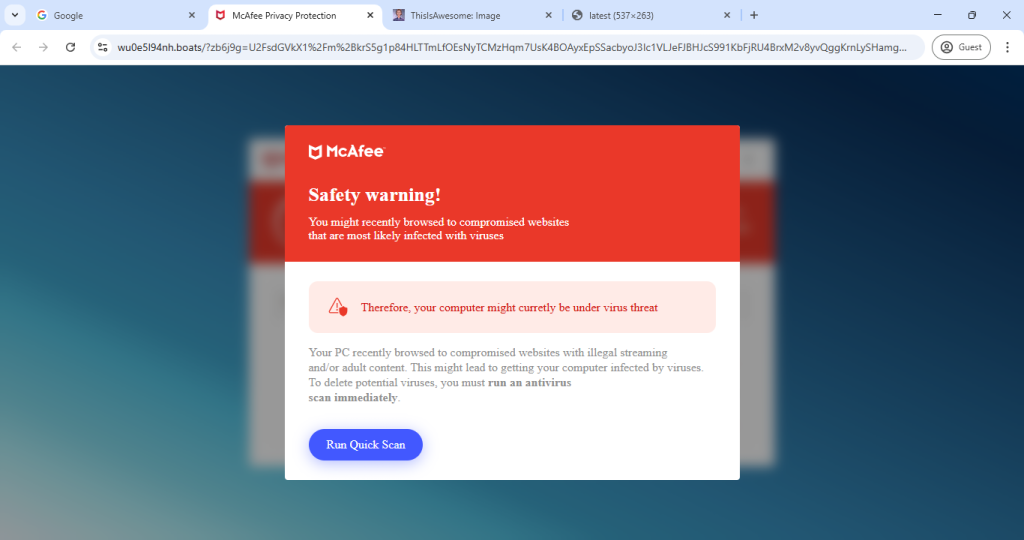
Abnormal: Pop-ups that appear on your desktop outside of any browser window. Pop-ups that persist after closing the tab that generated them. Pop-ups claiming your computer is infected and urging you to call a phone number or download a tool. Pop-ups that appear on websites you know don’t carry that style of advertising. Pop-ups that reappear immediately after being closed.
The tech support scam variant deserves specific mention because it combines pop-ups with social engineering in a particularly effective way. Your browser freezes — deliberately — and displays a full-screen warning that appears to be from Microsoft, claiming your computer is severely infected and providing a phone number for immediate assistance. The warning may include alarming sounds, a list of fake detected threats, and genuine-looking Microsoft branding.
This is entirely fabricated. Microsoft does not deliver security alerts through browser pop-ups and does not provide phone support this way. The number connects to a fraudulent call center that will attempt to gain remote access to your computer and extract payment for fake services — and in the process, often install actual malware.
If this happens: do not call the number. Force-close your browser (Alt + F4, or through Task Manager if the browser won’t close normally). Run an antivirus scan. The browser freeze is typically caused by a JavaScript loop deliberately designed to prevent you from closing the tab easily — it’s not actual malware on your system at that point, but a manipulative webpage.
How to investigate: If pop-ups are occurring persistently outside your browser, or inside your browser at unusual frequency, audit your browser extensions and check your installed programs for adware. Malwarebytes specifically targets adware and potentially unwanted programs that traditional antivirus sometimes ignores.
This builds on Sign #5 but deserves its own discussion because the specific changes involved carry different implications.
Beyond simply being turned off, malware sometimes makes more surgical modifications to your security configuration — changes subtle enough that you might not notice them immediately, but meaningful enough to create significant protection gaps.
Specific changes to watch for:
These changes are specifically designed to maintain the malware’s foothold and hinder removal. They’re the work of more sophisticated infections — the kind that have been specifically engineered for persistence.
How to investigate: Periodically check your antivirus exclusions list — it should contain only things you deliberately excluded. Check your firewall settings for rules you don’t recognize. Advanced users can check the hosts file (located at C:\Windows\System32\drivers\etc\hosts) for unusual entries — any line that isn’t a comment (lines beginning with #) should be examined.
For DNS settings, your computer’s DNS servers should typically be set to your ISP’s servers, Google’s (8.8.8.8), or Cloudflare’s (1.1.1.1) — not to unfamiliar IP addresses you can’t identify.
You’ve identified one or more of these signs. Your antivirus isn’t finding anything. Here’s what to do next, in order.
Step 1: Run a second-opinion scan. Download Malwarebytes (the free version is sufficient for a one-time scan) from its official website on a clean device, transfer it to the affected machine, and run a full scan. Malwarebytes uses different detection logic than most traditional antivirus products and frequently catches things that primary scanners miss — particularly adware, PUPs, and certain Trojan families.
Step 2: Use a bootable rescue scanner. If you suspect a rootkit or that malware is actively interfering with scans, boot from an external rescue disk. Kaspersky Rescue Disk, Avast Rescue Disk, and ESET SysRescue are all free tools that let you scan the infected system from outside the operating system — where rootkits can’t hide from the scanner. This is the most thorough scanning method available to consumers.
Step 3: Check your startup programs and scheduled tasks. Open Task Manager → Startup tab and disable anything unfamiliar. Then open Task Scheduler (search for it in the Start menu) and look at the task library for tasks with unfamiliar names or that run at unusual times. Malware frequently uses scheduled tasks to maintain persistence and re-infect systems after partial removal.
Step 4: Check for recently installed programs. Go to Settings → Apps → Sort by install date. Look at what was installed around when you first noticed symptoms. Anything unfamiliar installed without your knowledge is a strong indicator.
Step 5: Consider a clean reinstall. If scans continue to come back clean but symptoms persist — or if you find and remove something but problems continue — a full wipe and reinstall of your operating system is the only way to achieve certainty. It’s time-consuming but thorough. A persistent infection on a machine you can’t fully trust represents ongoing risk that no amount of scanning fully resolves.
The signs in this article represent the failure modes of inadequate or default protection. A significant portion of them — particularly fileless malware, rootkits, and behavioral evasion — are better handled by premium security solutions than by Windows Defender or basic free antivirus.
Specifically, premium antivirus suites offer:
Anti-rootkit scanning that operates at a deeper system level than standard file scanning, specifically targeting the hiding techniques rootkits use.
Memory scanning that targets fileless malware living entirely in RAM — a detection category most free tools don’t cover meaningfully.
Behavioral monitoring that watches processes continuously rather than only during scheduled scans — catching malware that activates between scans.
Network monitoring that flags suspicious outbound connections in real time rather than requiring you to manually run netstat and interpret the results.
Webcam and microphone protection that alerts you when any application attempts to access these devices — a feature category that doesn’t exist in Windows Defender.
The gap between free and paid protection is most visible precisely in the scenarios described in this article — advanced threats that evade basic detection. If you’re experiencing symptoms your current antivirus isn’t explaining, it may be worth reviewing what that antivirus actually covers. Our breakdown of free vs paid antivirus explains exactly where these gaps appear, and our antivirus comparison guide shows how leading products perform against advanced threats in independent testing.
Can malware hide from antivirus software? Yes, and it’s more common than most people realize. Techniques including rootkit installation, fileless execution in system memory, sandbox evasion (pausing malicious activity during scans), and self-adding to antivirus exclusion lists all allow malware to evade detection by security software running on the same machine. This is why behavioral symptoms and second-opinion scanners matter even when your primary antivirus reports clean.
What are the most common signs of a malware infection? The most reliable signs include unexplained slowdowns with high CPU usage by unrecognized processes, browser changes you didn’t make (homepage, search engine, new extensions), security software being disabled and resisting re-enabling, unusual outbound network activity, account activity you didn’t perform, programs opening or changing without your input, and webcam activation when no camera application is running. Multiple signs appearing together significantly increases the probability of infection.
Can malware turn off your antivirus? Yes. Disabling or interfering with security software is standard behavior for many malware variants. Some malware specifically targets antivirus processes, terminating them and preventing restart. Others add themselves to the antivirus exclusions list so they won’t be scanned. If your security software keeps turning itself off, treat that as a symptom requiring investigation rather than a technical glitch.
What is fileless malware and why is it hard to detect? Fileless malware operates entirely within your computer’s RAM and legitimate system processes rather than writing files to your hard drive. Since traditional antivirus scanning primarily looks at files, malware that creates no files presents a fundamental detection challenge. Fileless malware often uses built-in Windows utilities — PowerShell, WMI — to execute its payload, making the malicious activity appear to come from legitimate system tools.
Should I wipe my computer if I think I have malware? A full wipe and reinstall of the operating system is the most thorough solution and the only way to achieve certainty that a deep infection has been fully removed. However, it’s not always necessary. Start with second-opinion scans and bootable rescue scanners. If those resolve the symptoms, a reinstall may not be needed. If symptoms persist after thorough scanning, or if a rootkit infection is confirmed, a clean reinstall is the most reliable path forward.
Can malware survive a factory reset? Most malware does not survive a full factory reset that reformats the drive and reinstalls the operating system. However, some extremely sophisticated malware — specifically firmware-level infections targeting the BIOS or UEFI — can theoretically persist through OS reinstalls. These are rare, primarily target high-value enterprise or government systems, and are not a realistic concern for most consumer users. For the vast majority of infections, a proper clean reinstall resolves the issue.
How do I check if my computer has malware without antivirus? Without antivirus software, you can check Task Manager for processes consuming unexplained CPU or memory resources, review installed programs for unfamiliar applications, audit browser extensions, check startup programs for items you didn’t configure, run netstat -b in an administrator Command Prompt to see active network connections, and review your account activity logs on email, banking, and social media for actions you didn’t take. These manual checks won’t catch everything but identify obvious active infections.