Physical Address
304 North Cardinal St.
Dorchester Center, MA 02124
Physical Address
304 North Cardinal St.
Dorchester Center, MA 02124
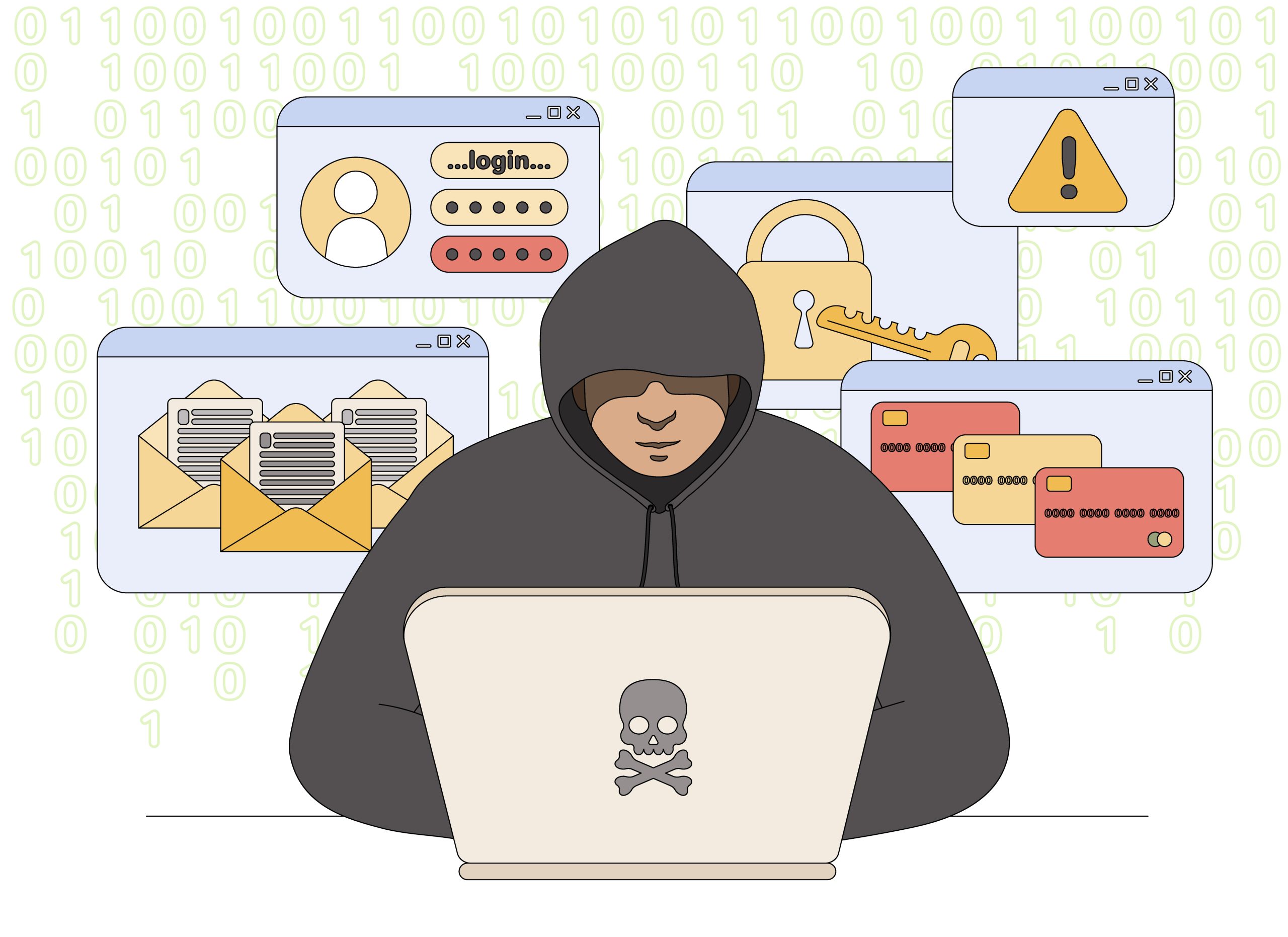
Malware = Malicious Software
It’s any software designed to harm your computer, steal your information, or take control of your device without your permission.
Common types:
How you get it: Clicking bad links, downloading infected files, visiting sketchy websites, opening email attachments
How to protect yourself: Use antivirus software, don’t click suspicious links, keep software updated
Last week, my neighbor knocked on my door in a panic.
“My computer says all my files are locked and I need to pay $500 in Bitcoin to get them back. Is this real? What did I do wrong?”
She’d been infected with ransomware—a type of malware that holds your files hostage.
As I helped her (spoiler: we didn’t pay the ransom), she asked the question I hear constantly: “What even IS malware? I keep hearing the word but I don’t actually understand what it means.”
So let me explain it the way I explained it to her—in plain English, without the tech jargon.
Think of malware like this:
Normal software = tools you want on your computer (Word, Chrome, Spotify)
Malware = software you absolutely DON’T want, created by criminals to:
The key word is “malicious.” This software has bad intentions.
It’s not like a regular program that crashes occasionally or has bugs. Malware is designed to hurt you.
What it does: Attaches itself to legitimate files (like a Word document or an .exe program). When you open the infected file, the virus activates and spreads to other files on your computer.
Real-world example: You download what looks like a game. When you install it, a virus attaches itself to your Microsoft Word program. Now every Word document you create is infected, and if you email those documents to friends, their computers get infected too.
How you know you have it:
Classic viruses are less common in 2026 because modern antivirus software catches them easily. But they still exist.
What it does: Encrypts (locks) all your files—photos, documents, everything. Then displays a message demanding you pay ransom (usually in Bitcoin) to get the decryption key.
Real-world example: You click an email attachment that looks like it’s from FedEx about a package delivery. Within minutes, every file on your computer is locked. A screen appears: “Your files are encrypted. Pay $500 in Bitcoin within 48 hours or lose them forever.”
How you know you have it:
This is the scariest type of malware in 2026 because it can destroy years of family photos, work documents, everything.
What it does: Silently watches everything you do. Records your passwords, tracks which websites you visit, logs your keystrokes, can even activate your webcam to watch you.
Real-world example: You download a free screensaver. Hidden inside is spyware. For the next three months, it records every password you type, every website you visit, every credit card number you enter. The criminal collects this data and either uses it themselves or sells it on the dark web.
How you know you have it:
Spyware is insidious because it can run for months without you noticing.
What it does: Pretends to be legitimate software. You voluntarily download and install it, thinking it’s something useful. Once installed, it opens a “backdoor” that lets hackers access your computer.
Real-world example: You search for “free PDF converter” and download one from a sketchy website. It actually converts PDFs (so you think it’s working!), but it also installed a backdoor. Now a hacker can access your files, install more malware, or use your computer to attack other computers.
How you know you have it:
The name comes from the Greek Trojan Horse story—it looks like a gift but contains hidden enemies.
What it does: Bombards you with unwanted advertisements. Pop-ups everywhere, even when you’re not browsing. Changes your browser homepage to ad-filled search engines.
Real-world example: You download a free game. It works fine, but suddenly you’re seeing pop-up ads constantly—even when the game isn’t running. Your browser homepage changed to “Search-Secure.com” or some other fake search engine filled with ads.
How you know you have it:
Adware is more annoying than dangerous, but it often comes bundled with spyware.
What it does: Similar to a virus, but doesn’t need you to do anything. It spreads automatically across networks, from computer to computer, exploiting security vulnerabilities.
Real-world example: A worm discovers your computer has an unpatched security flaw in Windows. It automatically installs itself, then scans your network for other vulnerable computers (like your spouse’s laptop, your smart TV, your work computer if you’re on VPN). Within hours, it has infected every device on your network.
How you know you have it:
Worms are less common in 2026 because operating systems have better automatic updates and security patches.
Here are the most common infection methods:
The trap: You get an email that looks legitimate—from FedEx, the IRS, your bank, or even your friend. It has an attachment: “Invoice.pdf” or “Package_Details.zip”
What happens: You open the attachment. It’s actually malware disguised as a document. Boom—infected.
Red flags:
The trap: You search for something innocent like “free movie streaming” or “PDF converter.” You click a result. The website automatically downloads malware to your computer.
What happens: Sometimes just visiting the site is enough (called a “drive-by download”). Other times, you click a fake “Download” button.
Red flags:
The trap: You want free software—maybe a game, PDF tool, video converter. You download it from a random website (not the official source).
What happens: The software works as advertised, but it comes bundled with malware. You’re clicking “Next, Next, Next” during installation and accidentally agree to install 5 other programs.
Red flags:
The trap: You’re browsing and a pop-up appears: “Your Flash Player is out of date. Click here to update.” Looks official.
What happens: You click, download the “update,” and install malware.
Red flags:
The trap: You find a USB drive in a parking lot. Curiosity wins—you plug it into your computer to see what’s on it.
What happens: The USB drive is infected. As soon as you plug it in, malware automatically installs.
Red flags:
The trap: You want Microsoft Office or Adobe Photoshop but don’t want to pay. You download a “cracked” version from a torrent site.
What happens: The cracked software often contains malware. Even if it works, you’ve also installed something malicious.
Red flags:
Depending on the type, malware can:
Steal your information:
Damage your system:
Use your computer for criminal activity:
Extort you:
Spy on you:
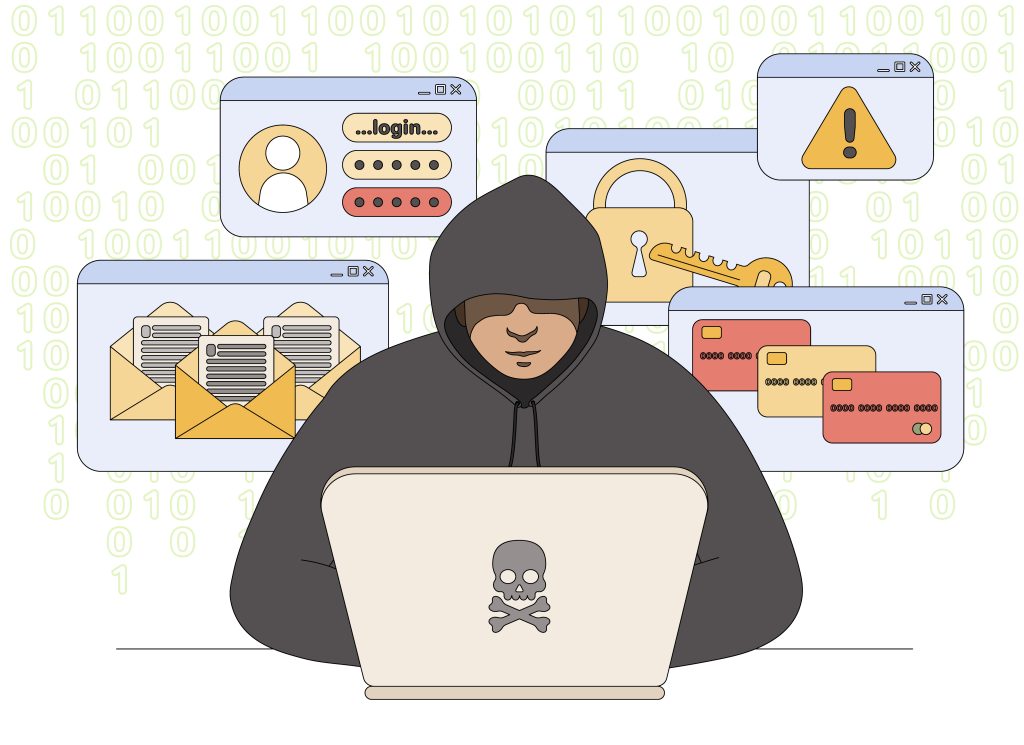
Even if you have antivirus software, malware can sometimes slip through. Watch for these warning signs:
Important: These signs don’t always mean malware—sometimes it’s just aging hardware or software bugs. But they’re worth investigating.
Here’s what actually works:
Why it matters: Antivirus software catches 99%+ of malware before it can harm you. It scans files, monitors behavior, blocks malicious websites.
What to use:
Cost reality: Good antivirus costs about $30-80/year. Getting infected with ransomware and losing all your files? Priceless. This isn’t where you should cheap out.
See our complete antivirus comparison for families
Why it matters: Most malware exploits known security holes in old software. Updates patch those holes.
What to update:
Set it and forget it: Enable automatic updates for everything. Yes, updates are annoying. Getting hacked is more annoying.
Rules to live by:
When in doubt, verify directly: If an email claims to be from your bank, don’t click the link. Go to the bank’s website directly by typing the URL yourself.
Safe sources:
Dangerous sources:
Why it matters: If malware steals one password, you don’t want it to work everywhere.
What to do:
Why it matters: If ransomware locks your files, backups mean you can tell the criminals to pound sand.
How to do it:
The 3-2-1 rule: 3 copies of important files, on 2 different types of media, with 1 offsite.
Develop a “security mindset”:
Remember: Criminals are smart. They create very convincing fakes. When in doubt, verify through a different channel.
Step 1: Disconnect from the internet immediately
Step 2: Run a full antivirus scan
Step 3: If antivirus finds nothing but you’re still suspicious
Step 4: For serious infections (ransomware, system unusable)
Step 5: Change all passwords
Step 6: Monitor financial accounts
Myth 1: “I only visit safe websites, so I can’t get malware.”
Truth: Even legitimate websites can be compromised. Hackers inject malware into trusted sites through ads or security vulnerabilities. You can get infected visiting CNN.com if they’re serving a malicious ad.
Myth 2: “Macs can’t get malware.”
Truth: Macs are more secure than Windows, but they absolutely can get malware. As Macs become more popular, criminals target them more. If you have a Mac, you still need protection.
Myth 3: “I have antivirus, so I’m 100% safe.”
Truth: Antivirus catches 99%+ of threats, but nothing is perfect. Brand-new malware (zero-day) might slip through. You still need to practice safe computing.
Myth 4: “Free antivirus is just as good as paid.”
Truth: Free antivirus is better than nothing, but it offers less protection, no VPN, no password manager, and you’ll see constant ads/upgrade prompts.
Myth 5: “If I get malware, I’ll know immediately.”
Truth: The best malware is invisible. Spyware can run for months stealing your data without you noticing anything wrong.
Myth 6: “Malware only affects Windows computers.”
Truth: Android phones, Macs, iPhones (less common but possible), smart TVs, routers—anything connected to the internet can be infected.
Here’s what I told my neighbor after we dealt with her ransomware:
Malware is a real threat. Millions of people get infected every year. It’s not a question of if you’ll encounter it, but when.
But you can protect yourself with some simple steps:
It’s like locking your front door. Doesn’t guarantee you’ll never be robbed, but it stops 99% of criminals who are looking for easy targets.
The criminals go after the low-hanging fruit—people with no protection, outdated software, and poor security habits.
Don’t be low-hanging fruit.
If you don’t have antivirus:
If you already have antivirus:
Regardless:
→ Norton 360 Deluxe (Best for Most People)
→ Best Antivirus for Families (If You Have Kids)
Can my phone get malware?
Yes. Android phones are more vulnerable than iPhones, but both can be infected. Read our guide on mobile malware (coming soon).
Is malware the same as a virus?
No. A virus is one type of malware. All viruses are malware, but not all malware is a virus. (Like how all squares are rectangles, but not all rectangles are squares.)
How do hackers make money from malware?
Many ways: stealing credit cards and selling them, ransomware payments, using your computer to mine cryptocurrency, selling access to your computer to other criminals, identity theft.
Can antivirus remove all malware?
Most of it, yes (99%+). Very advanced malware or deeply embedded rootkits might require manual removal or professional help.
What’s the difference between malware and a computer virus?
Malware is the umbrella term for all malicious software. Virus is a specific type that spreads by attaching to files.
Can I get malware from opening an email?
Just opening an email is usually safe. The danger is clicking links or downloading attachments in the email.
Does clearing my browser history remove malware?
No. Malware installs on your system, not in your browser history. You need antivirus software to remove it.
Can malware steal my passwords?
Absolutely. That’s one of its primary functions. Use a password manager and two-factor authentication to minimize damage.
→ Norton 360 Deluxe Review: Complete Testing & Honest Opinion
→ McAfee+ Advanced Family Review: Best for Family Protection?
→ Norton vs McAfee: Which Antivirus Is Better in 2026?
→ Best Antivirus Software for Families (Complete Buyer’s Guide)
→ Avira vs Windows Defender: Do You Still Need Antivirus?